Week7: Oct 8th–Oct 12th

Highlights for the week:

  • View the BMS Public Calendar for this weeks events!
  • Tip: Use ctrl+F and enter the date (like 1st, 2nd, 3rd, 4th, etc.) to jump quickly to the Blog entry for today!
  • Some notes for Parents/Guardians who view this Blog:
    • Everything we do in this class is listed on this Blog (so students who are absent can easily find what they’ve missed and even complete it while they are absent!)
    • Nearly every assignment can be completed at home or anywhere with an internet connection (use the Paint program rather than ‘Interwrite’ where you see it on this Blog)
    • Friday’s are makeup days so students who have trouble completing assignments have this extra time every week to get caught up!
    • You can see examples of every project we do at this Public Examples Folder Link

Monday 8th:

- Part 1) Review (click-to-comment)

  1. Please check your laptop for damages and report problems to me!
  2. If you did not complete the Weekly Reflections Form last Friday because you were absent or forgot, please complete it so I can raise your grade!  Here’s the link again to complete it: 
    • There’s a Pep Rally tomorrow, so the bell schedule will be different :)
    • Daily Warmup Activity (2min timer if necessary – no talking while you complete your warmup please!)
      • Checkout these amazing pumpkin carvings and tell me the number of your favorite and what you liked about it in your warmup for today 
      • Pumpkins
      • Here’s a sentence starter (or you can choose your own): I liked ___ because ___ 
    • Daily Warmup Response: Use the Daily Warm-up Form to record your answer
    • Here are the results form the Weekly Reflections Form last Friday   
      • image

    - Part 2) New (click-to-comment)

    1. New click-to-comments (blue is new!): http://goo.gl/iA4mC
    2. It’s that time of year where you start seeing a lot of pumpkins around, so…
      • Let’s try this virtual pumpkin carving activity: http://www.theoworlds.com/halloween/
      • image
      • Create a new Interwrite file called Fun to capture 3 of your creations (here some ideas):
      • image
      • After you finish each carving, copy the address for your creation, add the address to your IW file by your carving.
      • image
      • Looks like some other people had the same idea…
      • image 
    3. Create an email group for all of your teachers 
    4. Here’s a preview of what we will be starting soon!
      • image

    - Part 3) Do - Today students will… (click-to-comment)

    1. Create 3 pumpkin carving designs at the virtual pumpkin carving site: http://www.theoworlds.com/halloween/  
      • Save all 3 and the links to view them in an IW file called Fun in ‘My Documents’
    2. Create an email group called ‘My Teachers’ and add all of your teachers names 
    3. Send your teachers group an email with a link to your favorite carving (directions above) 

    - Part 4) Through? (click-to-comment)

    1. Checkout this Box Tops for Education site and try to win some support for our school!
    2. Here’s a site with tips on Pumpkin Carving: http://www.pumpkin-carving.com/
      • image

      Tuesday 9th:

      - Part 1) Review (click-to-comment)

      1. Please check your laptop for damages and report problems to me!
      2. Check your gmail for replies from your teachers
        • If you got a reply, use click to comment to let me know (include your name please!)
      3. Today were on the Pep Rally Bell Schedule: view the bell schedule here 
        • image
      4. Daily Warmup Activity (2min timer if necessary – no talking while you complete your warmup please!)
      5. Daily Warmup Response: Use the Daily Warm-up Form to record your answer

      - Part 2) New (click-to-comment)

      1. New click-to-comments (blue is new!): http://goo.gl/iA4mC
      2. Checkout our new BMS TV Pep Rally Slide (created using the tools below)
      3. Introduce 308 Today Custom Wordle Creator

      - Part 3) Do - Today students will… (click-to-comment)

      1. Create 2 new Pep Rally Wordles using the 308 Today Custom Wordle Creator.  They should look something like this: 
        • Label them Top Box and Bottom Box and add arrows (like this example)
        • image 
      2. Collect your 4 best Wordles (that you created) on one Interwrite page, save them to Paint as 1 Wordle (jpg file on your desktop!) and upload them to your 103 Student Folder in Google Drive to complete this assignment!  It should look something like this: 

      - Part 4) Through? (click-to-comment)

      1. Checkout more Doodles from the archive

        Wednesday 10th:

        - Part 1) Review (click-to-comment)

        1. Please check your laptop for damages and report problems to me!
        2. Here’s what your 103 student folder should look like after today:
          • image
          • Daily Warmup Activity (2min timer if necessary – no talking while you complete your warmup please!)
            • In your warmup form for today, please tell me at least one thing that you like about technology.  Here are several things that I like about teaching it: 
              • I like learning as much as I can about it and sharing what I’ve learned with as many people as I can who are interested in it too
              • I like seeing and hearing students helping each other with tech
              • I like it when students do more than is required (like adding extra images, sending me links and ideas, or completing work on their own time from home or wherever!)
            • Here’s a sentence starter (or you can choose your own): I like ___
          • Daily Warmup Response: Use the Daily Warm-up Form to record your answer 

            - Part 2) New (click-to-comment)

            1. New click-to-comments (blue is new!): http://goo.gl/iA4mC
            2. Introduce Tagxedo
            3. Try the Pumpkin Carving original site again 

            - Part 3) Do - Today students will… (click-to-comment)

            1. Complete yesterday’s assignment to Collect your 4 best Wordles (that you created) on one Interwrite page, save them to Paint as 1 Wordle (jpg file on your desktop or in ‘My Documents’!) and upload them to your 103 Student Folder in Google Drive to complete this assignment! It should look something like this:
            2. Add a Tagxedo custom shape to your Fun IW collection 
            3. Add 2 new carvings to your Fun IW collection using the following site (if it works) 

            - Part 4) Through? (click-to-comment)

            1. Checkout more Doodles from the archive

              Thursday 11th:

              - Part 1) Review (click-to-comment)

              1. Please check your laptop for damages and report problems to me! 
                • Daily Warmup Activity (2min timer if necessary – no talking while you complete your warmup please!)
                  • Check your email for a link to a folder called Resource for some shapes for today’s assignment.  In your warmup tell me either Yes I got it or No, I didn’t get it. (Click on Tagxedo in step 3 to see the shapes) 
                    • image
                  • Here’s a sentence starter (or you can choose your own): Yes I got it or No, I didn’t get it 
                • Daily Warmup Response: Use the Daily Warm-up Form to record your answer

                  - Part 2) New (click-to-comment)

                  1. New click-to-comments (blue is new!): http://goo.gl/iA4mC
                  2. Completed and uploaded 1 Wordle assignments list:
                    • image
                  3. Here are some examples of your work (click here for full screen view)
                    • 1 Wordle Assignment Examples
                  4. Use Gzaas to create a Name shape (simple black & white works best) to upload to Tagxedo and then add some examples to your 1 Wordle IW file

                  - Part 3) Do - Today students will… (click-to-comment)

                  1. Complete the assignment to Collect your 4 best Wordles (that you created) on one Interwrite page, save them to Paint as 1 Wordle (jpg file on your desktop or in ‘My Documents’!) and upload them to your 103 Student Folder in Google Drive to complete this assignment! It should look something like this:
                  2. Add a Tagxedo custom name shape to your 1 Wordle IW collection
                  3. Add 2 new carvings to your Fun IW collection using the following site (if it works)

                  - Part 4) Through? (click-to-comment)

                  1. Explore your new resources folder

                    Friday 12th: Folder checks every Friday!

                    - Part 1) Review (click-to-comment)

                    1. Please check your laptop for damages and report problems to me!
                    2. Here’s what your 103 student folder should look like:
                      • image
                      • Friday Warmup Activity (2min timer if necessary – no talking while you complete your warmup please!)
                        • Please complete the Weekly Reflections Form for this week! Please write 3 complete sentences in the big blocks of the form to get full credit!
                      • Friday Warmup Response: https://docs.google.com/a/bisdtx.org/spreadsheet/viewform?formkey=dEdJSGprVWtoVHJmQUI4X0FfWFpqUmc6MA#gid=0 

                        - Part 2) New (click-to-comment)

                        1. New click-to-comments (blue is new!): http://goo.gl/iA4mC
                        2. Folder checks for 1 Wordle Assignment which is due today (I will grade them this weekend)!
                        3. Updated files upload from yesterday:  please upload jpg files instead of gwb files and make sure they are named 1 Wordle 
                          • image
                          • Here’s how to rename a file:
                          • image
                        4. Here are some great examples which were uploaded yesterday: 

                        image

                        - Part 3) Do - Today students will… (click-to-comment)

                        1. Complete the assignment to Collect your 4 best Wordles (that you created) on one Interwrite page, save them to Paint as 1 Wordle (jpg file on your desktop or in ‘My Documents’!) and upload them to your 103 Student Folder in Google Drive to complete this assignment! It should look something like this:
                        2. Here are the links you might need to complete the assignment
                        3. Watch the Friday video collection

                        - Part 4) Through? (click-to-comment)

                        1. Checkout this cool Exploratorium website

                        Week6: Oct 1st–Oct 5th

                        Highlights for the week:

                        • View the BMS Public Calendar for this weeks events!
                        • Tip: Use ctrl+F and enter the date (like 1st, 2nd, 3rd, 4th, etc.) to jump quickly to the Blog entry for today!
                        • Some notes for Parents/Guardians who view this Blog:
                          • Everything we do in this class is listed on this Blog (so students who are absent can easily find what they’ve missed and even complete it while they are absent!)
                          • Nearly every assignment can be completed at home or anywhere with an internet connection (use the Paint program rather than ‘Interwrite’ where you see it on this Blog)
                          • Friday’s are makeup days so students who have trouble completing assignments have this extra time every week to get caught up!
                          • You can see examples of every project we do at this Public Examples Folder Link

                        Monday 1st:

                        - Part 1) Review (click-to-comment)

                        1. Please check your laptop for damages and report problems to me!
                        2. Check your grades.  All grades for this class have been entered and you should be receiving your report card near the end of this week. If you are surprised or concerned about anything, please let me know using (click-to-comment) and include your name and ID number if you would like me to get back to you about it!
                        3. Handshakes at the start of class are now optional for the remainder of the semester (but I hope you will continue with this practice!) 
                          • Daily Warmup Activity (2min timer if necessary – no talking while you complete your warmup please!)
                            • Checkout this website which has the top 100  American Speeches (many of which you can listen to). We’ll be using them in a Word Mapping activity soon.  In your warmup for today, please tell me which speech looks most interesting to you! 
                            • Here’s a sentence starter (or you can choose your own): I think the speech ___
                          • Daily Warmup Response: Use the Daily Warm-up Form to record your answer
                          • Here are the results of your week5 reflections: 
                            • image

                          - Part 2) New (click-to-comment)

                          1. New click-to-comments (blue is new!): http://goo.gl/iA4mC
                          2. Here are the examples of your work which I’ve captured so far.  These are on our website and or front entrance BMS TV… I’ll be adding a lot more!


                          - Part 3) Do - Today students will… (click-to-comment)

                          1. Since we were unable to view our Friday video clips before the weekend, we will view them today :) 

                          - Part 4) Through? (click-to-comment)

                          1. Checkout this full-screen slideshow of your work! 

                            Tuesday 2nd:

                            - Part 1) Review (click-to-comment)

                            1. Please check your laptop for damages and report problems to me!
                              • Daily Warmup Activity (2min timer if necessary – no talking while you complete your warmup please!)
                                • View these images and think about ways in which they are similar and ways in which they are different… be creative! 
                                  • image
                                • Use your daily warmup form to list 2 ways these are the similar and 2 ways they are different
                                • Here’s a sentence starter (or you can choose your own): These images are similar because____ but they’re different because ____
                              • Daily Warmup Response: Use the Daily Warm-up Form to record your answer 

                              - Part 2) New (click-to-comment)

                              1. New click-to-comments (blue is new!): http://goo.gl/iA4mC
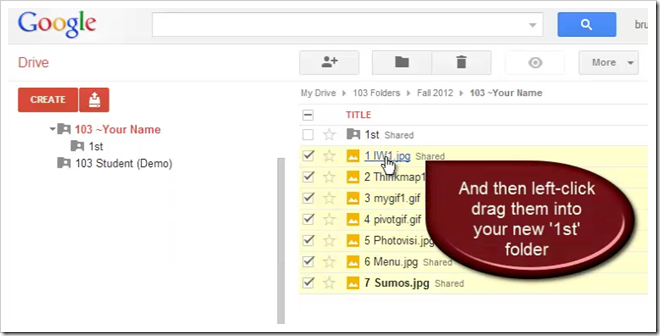
                              2. Open your 103 Student Drive Folder and create a new folder inside of it called ‘1st’.  Then drag all of your files from the 1st 6 weeks into it so you don’t get them confused with the files we will make during the 2nd 6 weeks.  Here’s a demonstration video clip which you can watch whenever you need to: 
                              3. Due to technical difficulties with our internet filter, we will introduce Wordle tomorrow! 

                              - Part 3) Do - Today students will… (click-to-comment)

                              1. Create a 1st 6 Weeks folder in your 103 Student Folder and move your work from the 1st 6 Weeks into it. 

                              - Part 4) Through? (click-to-comment)

                              1. Check your grades! Teachers cannot make changes after 12:00 today

                                Wednesday 3rd:

                                - Part 1) Review (click-to-comment)

                                1. Please check your laptop for damages and report problems to me! 
                                  • Daily Warmup Activity (2min timer if necessary – no talking while you complete your warmup please!)
                                    • View the list of answers from yesterdays photo comparison (apples and oranges) 
                                    • For your warmup, enter your vote by sending me the Blue Number in front of the comment you feel is the ‘most original’!  Please enter only one number and no text so I can get a count for the most votes! Your vote will only be counted if you follow these directions!
                                  • Daily Warmup Response: Use the Daily Warm-up Form to record your answer

                                    - Part 2) New (click-to-comment)

                                    1. New click-to-comments (blue is new!): http://goo.gl/iA4mC
                                    2. Introduce Wordle! 
                                      • Link to Wordle: http://www.wordle.net/create
                                      • Copy this green practice text, paste it into Wordle, and explore the options to see the effects: Words Words Words Words repeated repeated repeated repeated often often are are larger larger larger larger larger larger when pasted into Wordle Wordle
                                      • image

                                      • Here are the menu options at-a-glance
                                      • image

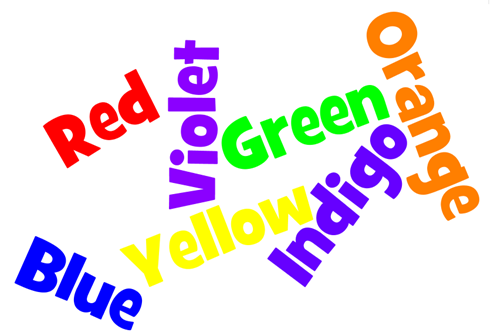
                                      • Challenge!  Can you get Wordle to list the seven colors of the rainbow in matching colors (like this example)?

                                      • image

                                    - Part 3) Do - Today students will… (click-to-comment)

                                    1. Create 3 Wordles using different sets of words, layouts, fonts and colors.  Here are some ideas: 
                                      • Link to Wordle: http://www.wordle.net/create
                                      • Use the first names of  important people in your life (family, friends, pets)
                                      • Use fun activities or hobbies (try to make the things you like best larger than the others)
                                      • Copy and paste some text from 308 Today
                                      • Copy and paste some text from a Google Search on any appropriate topic you choose
                                      • Try the colors of the rainbow challenge
                                    2. Capture your Wordles using the InterWrite camera tool
                                      • Save your Interwrite file to ‘My Documents’ as 1 Wordle
                                      • Here’s an example of what your file might look like

                                    image

                                    - Part 4) Through? (click-to-comment)

                                    1. Checkout this gallery of Wordles

                                      Thursday 4th:

                                      - Part 1) Review (click-to-comment)

                                      1. Please check your laptop for damages and report problems to me!
                                      2. If you missed the honor roll because of this class (either the all A honor roll or the A/B honor roll) please let me know and we will discuss ways to makeup work to raise your grade!  
                                        • Daily Warmup Activity (2min timer if necessary – no talking while you complete your warmup please!)
                                          • Open the World Population Counter at the link below 
                                          • Put your cursor over the US and view the current population (demo in class)
                                          • Please enter the current population of the US and 1 other country of your choice in your warmup for today 
                                          • Here’s a sentence starter (or you can choose your own): The current population of the US is ___ and the current population of ___ is ___ 
                                        • Daily Warmup Response: Use the Daily Warm-up Form to record your answer

                                          - Part 2) New (click-to-comment)

                                          1. New click-to-comments (blue is new!): http://goo.gl/iA4mC
                                          2. Demonstrate an easier method for controlling the sizes of words in a custom Wordle.  Open the Wordle Advanced page at this link: http://www.wordle.net/advanced 
                                            • Copy and paste the following list into the top box

                                              Largest:20
                                              Large:16
                                              Regular:12
                                              Small:8
                                              Smallest:4

                                          3. Demonstrate the solution to yesterday’s Color Challenge.  Open the Wordle Advanced page at this link: http://www.wordle.net/advanced
                                            • Copy and paste the following list into the bottom box: (remove any spaces that get added after each string before you click ‘Go’ or all but one of your words will be black in color!)  

                                              Red:1:FF0000
                                              Orange:2:FF8000
                                              Yellow:3:FFFF00
                                              Green:4:008000
                                              Blue:5:0000FF
                                              Indigo:6:4B0082
                                              Violet:7:9400D3

                                          - Part 3) Do - Today students will… (click-to-comment)

                                          1. Open your 1 Wordle Interwrite file from ‘My Documents’ and add a new blank page for today’s activities (…or create a new one if you need to) 
                                            • Wordle Advanced link: http://www.wordle.net/advanced
                                            • Capture the sizes activity from the new section above (use your own layout and color scheme!)
                                            • Change the words and sizes to create your own unique Wordle, capture it, and place it beside the sizes activity capture
                                            • Capture the Color Challenge solution from the new section above
                                            • Create your own version using the words, font and layout of your choice capture it, and place it beside the Color Challenge activity capture.  Your new page should look something like this (add labels and arrows as you see in this example)
                                            • image
                                          2. Create a sphere or a cube using sumopaint
                                            • Link to Sumopaint:  http://sumo.fm/#create
                                            • Here are the stops for creating your sphere or cube
                                              • Copy your favorite Wordle from your 1 Wordle Interwrite file
                                              • Paste it in paint
                                              • Save your Paint file as a jpg file to your desktop as WordleSumo
                                              • Open the file in Sumopaint:  http://sumo.fm/#create
                                              • Create a cube or sphere from these menu options
                                              • image
                                              • Capture your creation on a new page of your 1 Wordle Interwrite file.  It should look something like this:
                                              • image 

                                          - Part 4) Through? (click-to-comment)

                                          1. Explore the 308 Today gallery of Wordles

                                            Friday 5th: Folder checks every Friday!

                                            - Part 1) Review (click-to-comment)

                                            1. Please check your laptop for damages and report problems to me! 
                                            2. A message FOR PARENTS who check this Blog: every Friday in this class is a makeup work day to give students an opportunity to get caught up on their assignments.  If you are unhappy with your child’s Report Card today, please ask them if they have been using Fridays appropriately to get caught up on their assignments and to get help if they need it! (…and if not, please encourage them to do so!!!)  
                                              • Friday Warmup Activity (2min timer if necessary – no talking while you complete your warmup please!)
                                                • Please complete the Weekly Reflections Form for this week! Please write 3 complete sentences in the big blocks of the form to get full credit!
                                              • Friday Warmup Response: https://docs.google.com/a/bisdtx.org/spreadsheet/viewform?formkey=dDFLSWZhNWRNX3R2YTNpMmJLZW9CLVE6MA#gid=0 

                                                - Part 2) New (click-to-comment)

                                                1. New click-to-comments (blue is new!): http://goo.gl/iA4mC
                                                2. Answer questions about our 1 Wordle Interwrite assignment 
                                                3. I saw this photo this morning and thought it was cool.  If you can find more cool photos for me to post, please use (click-to-comment) to send me a link!
                                                  •  image

                                                - Part 3) Do - Today students will… (click-to-comment)

                                                1. Complete yesterday’s Wordle advanced assignment (in Part 3 of Thursday above)
                                                  • Save your 1 Wordle Interwrite assignment to ‘My Documents’
                                                2. View the Friday video clip selection

                                                - Part 4) Through? (click-to-comment)

                                                1. Check your grades! You can see what your report card will look like online before you get the paper today. 

                                                Week5: Sep 24th–Sep 28th

                                                Highlights for the week:

                                                • View the BMS Public Calendar for this weeks events!
                                                • Tip: Use ctrl+F and enter the date (like 1st, 2nd, 3rd, 4th, etc.) to jump quickly to the Blog entry for today!

                                                Monday 24th:

                                                - Part 1) Review (click-to-comment)

                                                1. Please check your laptop for damages and report problems to me!
                                                2. There’s a Pep Rally today so our bell schedule will be different.   
                                                  • Daily Warmup Activity (2min timer if necessary – no talking while you complete your warmup please!)
                                                    • Checkout this slideshow of student works from last Fall and send me the slide numbers of the 3 slides you like best 
                                                    • Here’s a sentence starter (or you can choose your own): I liked these 3 slides best:  ___
                                                  • Daily Warmup Response: Use the Daily Warm-up Form to record your answer
                                                  • Here’s what you thought of last week’s programs: 
                                                    • image

                                                  - Part 2) New (click-to-comment)

                                                  1. New click-to-comments (blue is new!): http://goo.gl/iA4mC
                                                  2. Checkout this Real-World Demo animated gif from the Bing search engine 
                                                  3. Explore the Sumopaint Symmetry and Shapes tools
                                                  4. Review how to upload your files to your Google Drive and discuss how to move those files into your 103 Student Folder 

                                                  - Part 3) Do - Today students will… (click-to-comment)

                                                  1. Create a new Interwrite file and save it as 7 sumos on your desktop 
                                                    • Here’s a link to Sumopaint: http://sumo.fm/#create
                                                    • Capture the first 2 Sumopaint creations (symmetry and assorted shapes) using the Interwrite camera tool
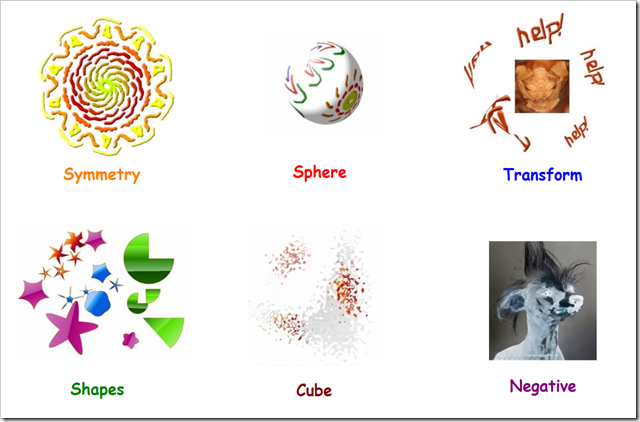
                                                    • Add the labels which you see below for all 6 images (we will add 2 images per day)
                                                    • There will be a total of 6 images added throughout this week so please leave room for the 4!
                                                  2. Check to make sure you have uploaded all of your work to your Google Drive 
                                                  3. Please move your work into your 103 Student folder 

                                                  - Part 4) Through? (click-to-comment)

                                                  1. Check your grades!  This is the last week of the 1st 6 Weeks grading period

                                                    Tuesday 25th:

                                                    - Part 1) Review (click-to-comment)

                                                    1. Please check your laptop for damages and report problems to me!
                                                      • Daily Warmup Activity (2min timer if necessary – no talking while you complete your warmup please!)
                                                        • Click on the link below and tell me 1 fact that you thought was most interesting or 1 thing you discovers from this that you didn’t already know 
                                                        • Here’s a sentence starter (or you can choose your own): I thought it was cool that ___
                                                      • Daily Warmup Response: Use the Daily Warm-up Form to record your answer
                                                      • Tomorrow night is our open house!

                                                      - Part 2) New (click-to-comment)

                                                      1. New click-to-comments (blue is new!): http://goo.gl/iA4mC
                                                      2. Review how to upload your files to your Google Drive and discuss how to move those files into your 103 Student Folder 

                                                      - Part 3) Do - Today students will… (click-to-comment)

                                                      1. Check to make sure you have uploaded all of your work to your Google Drive
                                                      2. Please move your work into your 103 Student folder

                                                      - Part 4) Through? (click-to-comment)

                                                      1. Check your grades! This is the last week of the 1st 6 Weeks grading period  

                                                        Wednesday 26th:

                                                        - Part 1) Review (click-to-comment)

                                                        1. Please check your laptop for damages and report problems to me!
                                                        2. Here’s what your 103 student folder should look like:
                                                          • image
                                                          • Daily Warmup Activity (2min timer if necessary – no talking while you complete your warmup please!)
                                                            • View this evenings Open House Screencast for our classes and tell me either 1 thing you learned about the class that you didn’t already know or make 1 suggestion for what I might add to next year’s screencast! 
                                                            • Here’s a sentence starter (or you can choose your own): I thought ___
                                                          • Daily Warmup Response: Use the Daily Warm-up Form to record your answer
                                                          • Here’s our BMS TV slide with the schedule of events for this evening: 
                                                            •  image

                                                            - Part 2) New (click-to-comment)

                                                            1. New click-to-comments (blue is new!): http://goo.gl/iA4mC
                                                            2. Review how to upload your files to your Google Drive if you need it by watching the clip below
                                                            3. Explore the Sumopaint Sphere and Cube tools

                                                            - Part 3) Do - Today students will… (click-to-comment)

                                                            1. Continue adding to your Sumopaint Interwrite file and save it as 7 sumos on your desktop or in ‘My Documents’
                                                              • Here’s a link to Sumopaint: http://sumo.fm/#create
                                                              • Capture the Day 2 Sumopaint creations (Sphere and Cube) using the Interwrite camera tool
                                                              • Add the labels which you see below for all 6 images (we will add 2 images per day)
                                                              • There will be a total of 6 images added throughout this week so please leave room for the 4!
                                                              • Here’s what your IW file should look like after each day (this will be a 3 day project):
                                                              • Sumo Project gif
                                                            2. Check to make sure you have uploaded all of your work to your Google Drive
                                                            3. Complete any missing assignments for this class!  Here’s the list of assignments which should be in your folder: 

                                                            - Part 4) Through? (click-to-comment)

                                                            1. Check your grades! This is the last week of the 1st 6 Weeks grading period 

                                                              Thursday 27th:

                                                              - Part 1) Review (click-to-comment)

                                                              1. Please check your laptop for damages and report problems to me!
                                                              2. Here’s what your 103 student folder should look like:
                                                                • image
                                                                • Daily Warmup Activity (2min timer if necessary – no talking while you complete your warmup please!)
                                                                  • View and ‘sign’ the End of Grading Period Responsibilities Form
                                                                    • Today’s warmup is a special GRADED EVENT!
                                                                    • This helps you to know what is expected of you at the end of each grading period!
                                                                • Special Warmup Response: Use this special End-of-Grading Period Responsibilities Form to record your answer

                                                                  - Part 2) New (click-to-comment)

                                                                  1. New click-to-comments (blue is new!): http://goo.gl/iA4mC
                                                                  2. View the Sumpaint Help Menu 
                                                                    • Link to help menu: http://www.sumopaint.com/help/?p=Get%20Started
                                                                    • image
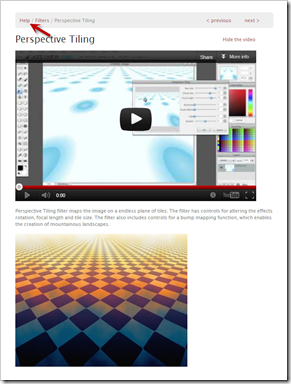
                                                                    • Here’s what the help guide for Perspective Tiling looks like (to return to the help menu, click the Help button marked with the red arrow below):
                                                                    • image
                                                                    • …and here’s the picture above ‘Perspective Tiled’
                                                                    • image 
                                                                  3. Explore the Sumopaint Transform and Image Effects tools

                                                                  - Part 3) Do - Today students will… (click-to-comment)

                                                                  1. Continue adding to your Sumopaint Interwrite file and save it as 7 sumos on your desktop or in ‘My Documents’
                                                                    • Here’s a link to Sumopaint: http://sumo.fm/#create
                                                                    • Capture the Day 3 Sumopaint creations (Transform and Image Effects) using the Interwrite camera tool
                                                                    • Add the labels which you see below for all 6 images
                                                                    • Here’s what your final IW file should look like:
                                                                    • 7 Sumos
                                                                  2. Convert your Interwrite 7 Sumos file to a Paint jpg file and upload it to your Drive 103 Student Folder 
                                                                    • In Interwrite, click on the select arrow and the use ctrl+A to select All
                                                                    • Use ctrl+C to copy everything
                                                                    • Open Paint and use ctrl+V to paste your work into Paint
                                                                    • Save your Paint file as 7 Sumos
                                                                    • Upload your file into your 103 Student folder by clicking on your folder and then clicking the upload button
                                                                    • image
                                                                    • After you upload it, you should see this:
                                                                    • image
                                                                  3. Check to make sure you have uploaded all of your work to your Google Drive
                                                                  4. Complete any missing assignments for this class! Here’s the list of assignments which should be in your folder once you have uploaded everything:
                                                                    • image

                                                                  - Part 4) Through? (click-to-comment)

                                                                  1. Check your grades! This is the last week of the 1st 6 Weeks grading period 

                                                                    Friday 28th: Folder checks every Friday!

                                                                    - Part 1) Review (click-to-comment)

                                                                    1. Please check your laptop for damages and report problems to me!
                                                                    2. Logon to your Gmail, click on Drive and then click on your 103 Student folder.  This is what you should see if you have uploaded everything correctly!  All assignments are due Today! 
                                                                      • image
                                                                      • Friday Warmup Activity (2min timer if necessary – no talking while you complete your warmup please!)
                                                                        • Please complete the Weekly Reflections Form for this week! Please write 3 complete sentences in the big blocks of the form to get full credit!
                                                                      • Friday Warmup Response: https://docs.google.com/a/bisdtx.org/spreadsheet/viewform?formkey=dEdtYTl0Z3R0TXphV3ZkaENGdEZNcnc6MA#gid=0 

                                                                        - Part 2) New (click-to-comment)

                                                                        1. New click-to-comments (blue is new!): http://goo.gl/iA4mC
                                                                        2. Upload any files which you have already completed first, then complete and upload anything you are missing!
                                                                        3. If you cannot get to your Gmail or Drive, upload them to your S-Drive and then (click-to-comment) with your name and student ID number and tell me your files are in your S-drive
                                                                        4. Review how to upload your files to your Google Drive Folder 
                                                                          • Watch the gif below to review how to upload your files
                                                                          • upload2driveGIF
                                                                        5. Here’s how to rename a file in your Drive:
                                                                          •   image
                                                                        6. Conduct Folder checks

                                                                        - Part 3) Do - Today students will… (click-to-comment)

                                                                        1. Complete 7 Sumo Interwrite file, copy it to paint, save it as 7 sumo. jpg and upload it to your Drive 103 Student Folder 
                                                                          • It should look like this:
                                                                          • image 
                                                                        2. Complete and upload any missing assignments for this class! Here’s the list of assignments which should be in your folder once you have uploaded everything:
                                                                          • image
                                                                        3. View Friday video clips 

                                                                        - Part 4) Through? (click-to-comment)

                                                                        1. Check your grades in all of your classes! This is the last day of the 1st 6 Weeks grading period!
                                                                        2. Looks like rain late tonight through tomorrowStorm cloud 
                                                                          • image