Week19: May 21st–May 25th

Highlights for the week:
  • This week is the last full week of school and we have a long weekend at the end of it!
  • View the BMS Public Calendar for this weeks events!
  • Tip: Use ctrl+f and enter the date (like 1st, 2nd, 3rd, 4th, etc.) to jump quickly to the Blog entry for today!
Monday 21st: The last Monday of the 2011-12 School Year!!! (Next Monday is a holiday)

- Part 1) Review
  1. Please check your laptop for damages and report problems to me!
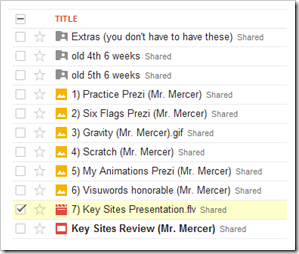
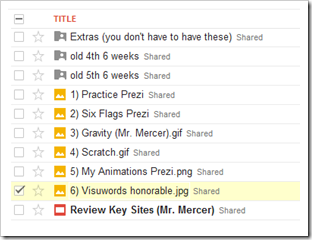
  2. Here’s what your 103 student folder should look like:
    • image
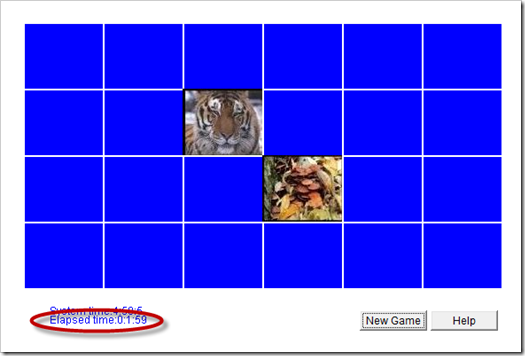
    • Daily Warmup Activity (2min timer if necessary – no talking while you complete your warmup please!)
    • Use this new Student Submitted Links Form to send me your 3 favorite links!
    - Part 2) New
    1. 5th Period Robotics class needs to do the warmup and reflection questions from last Friday since they did not have class.  Here are the links:
    2. Create slide 13 on Prezi for your Review Key Sites Presentation.  Please include the following links!
    3. Create a new Glog named Positive Personality
    - Part 3) Do - Today students will…
    1. Create slide 13 on Prezi for your Review Key Sites Presentation.  
    2. Choose a word to use for your Positive Personality Glog project 
    3. Create a Gdoc for collecting notes and information to use in your Glog (you can name it Glog Notes)
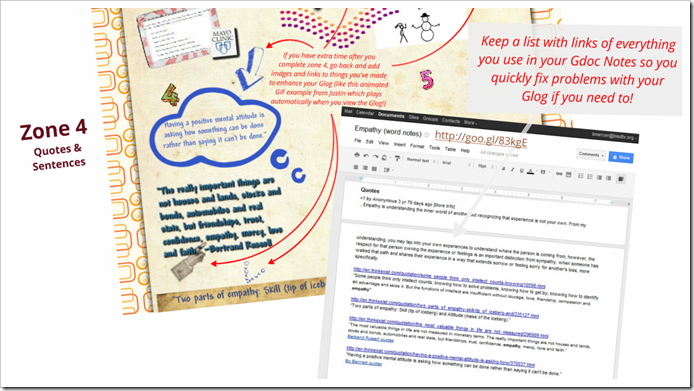
    4. Begin creating your Glog using the Project Template which I’ve provided for you (starting with zones 1 & 2 of the template)!  Use the embedded Prezi above to guide you! (Click the image for a full size view)
      • Zones 1&2
    - Part 4) Through?
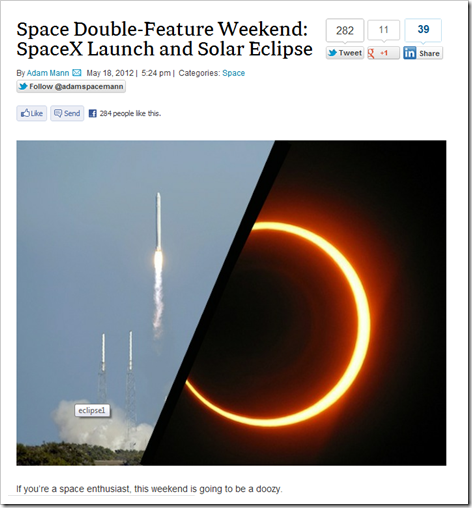
    1. Checkout this article on some out-of-this-world current events!
      Tuesday 22nd:

      - Part 1) Review
      1. Please check your laptop for damages and report problems to me!
      2. Here’s what your 103 student folder should look like:
        • image
        • Daily Warmup Activity (2min timer if necessary – no talking while you complete your warmup please!)
        • Use the Daily Warm-up Form to record your answer
        - Part 2) New
        1. 5th Period Robotics: All students should work on slide 13 and the Glogster project since I won’t be in class today
        2. Here are some general project links to help you with your Glog
        - Part 3) Do - Today students will…
        1. Complete slide 13 on Prezi from yesterday in your Review Key Sites Presentation 
        2. Add zone 3 with synonyms and antonyms using Wordle to your Positive Personality Glog.  For those of you who had trouble using the directions Prezi, here are some direct links for todays zone 3 assignment: 
        - Part 4) Through?
        1. Checkout these images of the eclipse which occurred Sun, May 20th
          Wednesday 23rd:

          - Part 1) Review
          1. Please check your laptop for damages and report problems to me!
          2. Here’s what your 103 student folder should look like:
            •  image
            • Daily Warmup Activity (2min timer if necessary – no talking while you complete your warmup please!)
            • Use the Daily Warm-up Form to record your answer 
              - Part 2) New
              1. Create slide 14 on Glogster for your last Review Key Sites Presentation slide. Please include the following links!
              2. When you have completed your review Key Sides Presentation, Please use Screencast-o-matic to record your entire presentation playing… this will be the last assignment which we will upload to your Gdocs 103 Student folder!
              - Part 3) Do - Today students will…
              1. Create slide 14 on Glogster for your last Review Key Sites Presentation slide
                • Please follow the directions in the New section above!
              2. Record your entire Presentation playing using Screencast-o-matic, save it as an FLV file, and upload it to your Gdocs 103 Student Folder as 7) Key Sites Presentation 
              3. Add zone 4 with 3 example sentences using your word to your Positive Personality Glog. Here are some direct links for today’s zone 4 assignment:
              - Part 4) Through?
              1. Checkout these MSNBC Supermoon 2012 slideshow images
                Thursday 24th:

                - Part 1) Review
                1. Please check your laptop for damages and report problems to me!
                2. Here’s what your 103 student folder should look like:
                  • image
                  • Daily Warmup Activity (2min timer if necessary – no talking while you complete your warmup please!)
                  • Use the Daily Warm-up Form to record your answer 
                    - Part 2) New
                    1. Makeup links list
                    2. Add zone 5 with 3 graphics/images related to your word to your Positive Personality Glog.  Here are some direct links for today’s zone 5 assignment:
                    - Part 3) Do - Today students will…
                    1. Complete slides 1-14 of your Review Key Sites Presentation.  Here’s my example:  
                    2. Record your entire Review Key Sites Presentation using Screencast-o-matic, save it as an FLV file named 7) Key Sites Presentation , and upload it to your Gdocs 103 Student folder.  Here’s my example:  
                    3. Complete your Positive Personality Glog.  Here’s my example:
                    - Part 4) Through?
                    1. Checkout this slideshow of images from Mars on MSNBC 
                      Friday 25th: Folder checks every Friday!  Bell Schedule for today!

                      - Part 1) Review
                      1. Please check your laptop for damages and report problems to me!
                      2. Here’s what your completed 103 student folder should look like:
                        • image
                        • Daily Warmup Activity (2min timer if necessary – no talking while you complete your warmup please!)
                          • Please explore the Nature Photography site below and send me the links to 3 of your favorite images 
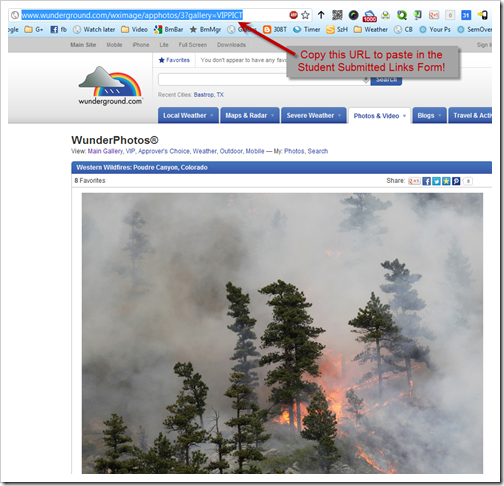
                            • Open this form and when you find a photo which you like, copy the URL (web address) and paste it in the form (you need 3 links)
                            • If you would like to explore images of the eclipse, go to the Solar dropdown option shown in the picture below
                            • http://corypoole.com/
                          • image
                        • Use the Student Submitted Links Form to send me your 3 favorite links!
                          - Part 2) Repeated from yesterday
                          1. Makeup links list
                          2. Add zone 5 with 3 graphics/images related to your word to your Positive Personality Glog. Here are some direct links for today’s zone 5 assignment:
                          - Part 3) Do - Today students will…
                          1. Do individual progress checks looking for these 3 things
                            • 7 items in your Gdocs 103 Student Folder (image of contents at the top of today)
                            • 14 slides in your Review Key Sites Presentation
                            • Positive Personality Glog progress (linked in slide 14)
                            • image
                          2. Complete slides 1-14 of your Review Key Sites Presentation. Here’s my example:
                          3. Record your entire Review Key Sites Presentation using Screencast-o-matic, save it as an FLV file named 7) Key Sites Presentation , and upload it to your Gdocs 103 Student folder. Here’s my example:
                          4. Complete your Positive Personality Glog. Here’s my example:
                          5. View the Friday video clips selection
                          - Part 4) Through?
                          1. Checkout more images from the Cory Poole Nature Photography site

                          Week18: May14th–May 18th

                          Highlights for the week:

                          • View the BMS Public Calendar for this weeks events!
                          • Tip: Use ctrl+f and enter the date (like 1st, 2nd, 3rd, 4th, etc.) to jump quickly to the Blog entry for today!

                          Monday 14th:

                          - Part 1) Review

                          1. Please check your laptop for damages and report problems to me!
                          2. Here’s what your 103 student folder should look like:
                            • image
                            • Daily Warmup Activity (2min timer if necessary – no talking while you complete your warmup please!)
                              • Try this numbers memory game and send me the number of digits you are able to remember in the warmup form 
                              • Here’s a sentence starter (or you can choose your own): I remembered ___
                            • Use the Daily Warm-up Form to record your answer

                            - Part 2) New

                            1. An important note about Glogster!
                              • Glogster EDU accounts are created by teachers for their students, and as a result, teachers have complete control over the content and visibility of student Glogs. If you have any doubts at all about whether or not something you would like to add to a Glog is appropriate or not, choose something else that you are certain is appropriate to use instead!  If you have to ask, that indicates doubt… choose something else! If I have any doubts I will remove the content of concern, or the entire Glog, or your entire account (and I sincerely hope I don’t have to do any of these!)
                            2. View the ABC News intro video on Glogster: http://dl.dropbox.com/u/197021/Glogster%20Videos/1%20ABC_NEWS_-_Glogster_is_the_leading_online_creative_tool_for_kids.flv 
                            3. View video tutorials on how to add a wall, a page wall, and text to a new practice Glog called ‘About Me!’

                            - Part 3) Do - Today students will…

                            1. Create a new practice Glog called ‘About Me!’: Click here to logon to Glogster and click here to see your Glogster nickname (your password is the same one you use to logon to your computer)
                            2. Check to ensure you have completed the following:
                              • 5 files uploaded to your 103 GDocs Student Folders
                              • Slide 10 on Scratch added to your Review Key Sites Presentation
                              • Prezi Links submitted (for all 3 Prezis)

                            - Part 4) Through?

                            1. Checkout these ‘Best of’ Glogs for ideas:

                              Tuesday 15th:

                              - Part 1) Review

                              1. Please check your laptop for damages and report problems to me!
                              2. Here’s what your 103 student folder should look like:
                                • image
                                • Daily Warmup Activity (2min timer if necessary – no talking while you complete your warmup please!)
                                  • Try this binary numbers memory game and send me the number of digits you are able to remember in the warmup form
                                  • Here’s a sentence starter (or you can choose your own): I remembered ___
                                • Use the Daily Warm-up Form to record your answer 

                                - Part 2) New

                                1. Add slide 11 on Aviary Education to your Review Key Sites Presentation.  It should contain the following 2 links and information:
                                2. If you don’t remember how to logon to your Aviary account, here’s a link to the directions: http://pages.citebite.com/j4o3f5gkfhi
                                3. If you can’t find your own images, use IW to capture something you like which was made by another student and give them credit (ex: made by MarkT) for their work on your slide!!!
                                4. View Glogster video tutorials

                                - Part 3) Do - Today students will…

                                1. Add slide 11 on Aviary to your Review Key Sites Presentation
                                  • follow the directions in the New section above
                                2. Continue working on your About Me Glog from yesterday

                                - Part 4) Through?

                                1. Continue to explore these ‘Best of’ Glogs for ideas:

                                  Wednesday 16th:

                                  - Part 1) Review

                                  1. Please check your laptop for damages and report problems to me!
                                  2. Here’s what your 103 student folder should look like after today:
                                    •  image
                                    • Daily Warmup Activity (2min timer if necessary – no talking while you complete your warmup please!)
                                    • Use the Daily Warm-up Form to record your answer 

                                      - Part 2) New

                                      1. Explore the Visuwords online graphical dictionary
                                        • View a Screencast on Visuwords: https://docs.google.com/open?id=0B1J3MHR052StVWpidVZmX1VmSUE
                                        • Link: http://www.visuwords.com/fullscreen/
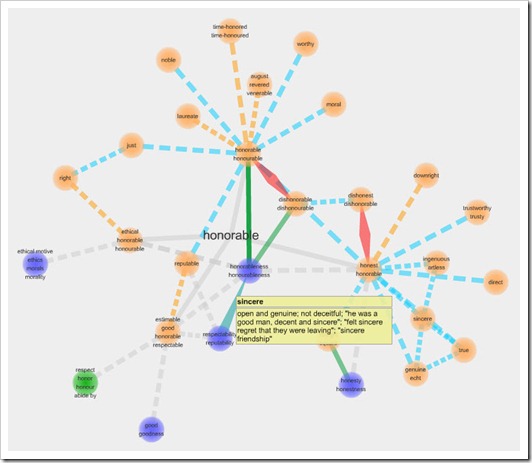
                                        • Enter the word Honorable and observe all of the different colored connections in the related word cloud.  Drag the words around to see how the cloud adjusts.
                                        • View the relationships key on the left side panel to see what those colored connections mean
                                        • Double-click on any word to expand the word cloud to include more related terms
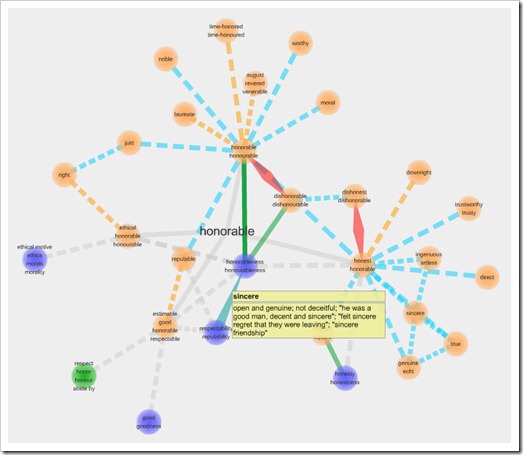
                                        • Put your cursor on the word Sincere. It should look like this:
                                        • Visuwords honorable
                                      2. Learn how to capture an image with a popup
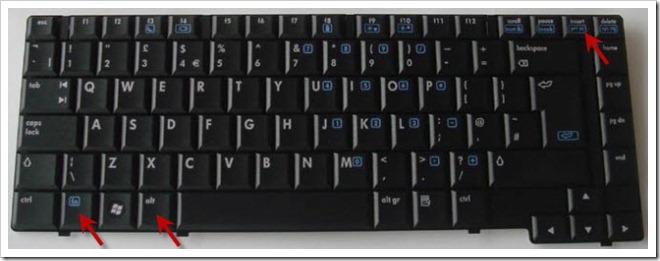
                                        • Hold down the alt and function keys with your left hand and tap the print screen key with your right hand to capture an image of your browser window with the definition of Sincere showing (IW won’t capture the popup definition of the word Sincere).  Here is an image of the keys you should press:
                                        • Keyboard
                                        • Open paint and use ctrl+V to paste your browser image into Paint
                                        • Use the select tool to crop the image so you only see the word cloud
                                          • Use ctrl+X to cut your selection out of paint
                                          • Open a new Paint window and paste (ctrl+V) your cropped selection into paint
                                        • Save your image as a jpg file named 6) Visuwords and upload it to your GDocs 103 student folder
                                      3. View Glogster video tutorials 

                                      - Part 3) Do - Today students will…

                                      1. Capture, crop, save and upload 6) Visuwords to your GDocs 103 student folder
                                        • follow the directions in the new section above
                                      2. Complete slide 11 on Aviary and add it to your Review Key Sites Presentation folder
                                      3. Continue working on your About Me Glog  

                                      - Part 4) Through?

                                      1. Explore Visuwords further!

                                        Thursday 17th:

                                        - Part 1) Review

                                        1. Please check your laptop for damages and report problems to me!
                                        2. Here’s what your 103 student folder should look like:
                                          • image
                                          • Daily Warmup Activity (2min timer if necessary – no talking while you complete your warmup please!)
                                            • Try this letters numbers memory game and send me the number of letters you are able to remember in the warmup form and which you are better at remembering: letters or numbers 
                                            • Here’s a sentence starter (or you can choose your own): I remembered ___ and I’m better at ___ 
                                          • Use the Daily Warm-up Form to record your answer

                                            - Part 2) New

                                            1. Add slide 12 on Holiday Interactives to your Review Key Sites Presentation. It should contain the following links and an example from each site which you will need to create.   
                                            2. Here’s my example slide 12: https://docs.google.com/presentation/d/1DxaIlQr-bFyxfs7Bc4-acKs8gGZBS7miLpALru07LZo/present#slide=id.g3f8f42a_0_12
                                              • Holiday Interactives

                                            - Part 3) Do - Today students will…

                                            1. Add slide 12 on Holiday Interactives to your Review Key Sites Presentation
                                              • follow the directions in the new section above!
                                            2. Complete your 6) Visuwords assignment and upload it to your GDocs 103 student folder. It should look something like this:
                                              • 6) Visuwords honorable 
                                            3. Complete any missing slides from your review Key Sites Presentation   
                                              • you should have 12 slides in your presentation
                                            4. Continue working on your About Me Glog

                                            - Part 4) Through?

                                            1. My wife (Mrs. Mercer) is having her appendix removed (which is why I’m not here today).  Today is also her birthday (…great way to spend your birthday, isn’t it?) so if you feel like sending her either a get well note or a happy birthday note, or using the Birthday Cake Creator application above to send her a cake, I’m sure she would enjoy it!

                                              Friday 18th: Folder checks every Friday!

                                              - Part 1) Review

                                              1. Please check your laptop for damages and report problems to me!
                                              2. Here’s what your 103 student folder should look like:
                                                • image
                                                • Daily Warmup Activity (2min timer if necessary – no talking while you complete your warmup please!)
                                                • Use the Daily Warm-up Form to record your answer 

                                                  - Part 2) New

                                                  1. 2nd Period Students will need to complete yesterday’s assignment below!
                                                    1. Add slide 12 on Holiday Interactives to your Review Key Sites Presentation. It should contain the following links and an example from each site which you will need to create.
                                                    2. Here’s my example slide 12: https://docs.google.com/presentation/d/1DxaIlQr-bFyxfs7Bc4-acKs8gGZBS7miLpALru07LZo/present#slide=id.g3f8f42a_0_12
                                                      • Holiday Interactives

                                                  - Part 3) Do - Today students will…

                                                  1. Complete the Week18 Reflections Form

                                                  …from earlier this week

                                                  1. Add slide 12 on Holiday Interactives to your Review Key Sites Presentation
                                                    • follow the directions in the new section above!
                                                  2. Complete your 6) Visuwords assignment and upload it to your GDocs 103 student folder. 
                                                  3. Complete any missing slides from your review Key Sites Presentation
                                                  4. Continue working on your About Me Glog

                                                  - Part 4) Through?

                                                  1. Checkout these award winning underwater photos
                                                  2. image 

                                                  Week17: May 7th–May 11th

                                                  Highlights for the week:

                                                  • View the BMS Public Calendar for this weeks events!
                                                  • Tip: Use ctrl+f and enter the date (like 1st, 2nd, 3rd, 4th, etc.) to jump quickly to the Blog entry for today!

                                                  Monday 7th:

                                                  - Part 1) Review

                                                  1. Please check your laptop for damages and report problems to me!
                                                  2. Here’s what your 103 student folder should look like:
                                                    • image
                                                    • Daily Warmup Activity (2min timer if necessary – no talking while you complete your warmup please!)
                                                      • Review this pattern memory game and send me your score at the end.  You do not need to enter your name!
                                                      • Here’s a sentence starter (or you can choose your own): My score was ___
                                                    • Use the Daily Warm-up Form to record your answer

                                                    - Part 2) New

                                                    1. Create a pivot animation which shows what might happen if gravity suddenly reversed itself (things that normally fall would float to the top of the animation window and things that normally float like balloons would drop to the bottom)
                                                      • Capture at least 5 key frames from your animation and design and integrate them to your Prezi
                                                    2. View my example Prezi to guide you as you add captures and links from each of the following animation tools

                                                    - Part 3) Do - Today students will…

                                                    1. Create a pivot animation showing what might happen if Gravity was turned off and save it as an animated gif file called 3) Gravity to upload to your GDocs 103 Student Folder. 
                                                      • Here’s an example animated gif:
                                                      • Pivot - Float Away (Mr. Mercer)
                                                    2. Begin creating a My Animations Prezi like the example below

                                                    - Part 4) Through?

                                                    1. Further explore any of the following animation tools

                                                      Tuesday 8th:

                                                      - Part 1) Review

                                                      1. Please check your laptop for damages and report problems to me!
                                                      2. Here’s what your 103 student folder should look like:
                                                        • image
                                                        • Daily Warmup Activity (2min timer if necessary – no talking while you complete your warmup please!)
                                                        • Use the Daily Warm-up Form to record your answer

                                                        - Part 2) New

                                                        1. Add slide 10 on Scratch & Screencast-o-matic to your Review Key Sites Presentation.  It should contain the following 5 links and information:
                                                          1. A link to the Scratch homepage:  http://scratch.mit.edu/
                                                          2. A link to the Screencast-o-matic homepage: http://screencast-o-matic.com/
                                                          3. A link to 308 Today week 10: http://308today.blogspot.com/2012/03/week10-mar19thmar-23rd.html 
                                                          4. A picture of your draw a letter program (here’s a link to my example draw a letter program which you can download and try)
                                                          5. A picture of either a draw a shape program OR any other program that you’re proud of! (here’s a link to my example draw a shape program which you can download and try)
                                                        2. Here’s a link to my slide 10 example: 

                                                        Slide 10 directions

                                                        - Part 3) Do - Today students will…

                                                        1. Add slide 10 on Scratch to your Review Key Sites Presentation
                                                          • follow the directions in the New section above
                                                        2. Continue working on your My Animations Prezi assignment from yesterday

                                                        - Part 4) Through?

                                                        1. Experiment with the Scratch Program.  Make something cool, screencast it running, save it as Cool Scratch and upload it to your 103 Folder

                                                          Wednesday 9th:

                                                          - Part 1) Review

                                                          1. Please check your laptop for damages and report problems to me!
                                                          2. Tonight is the end-of-the-year awards ceremony (6:30pm at the PAC)!  Here’s a map link: http://g.co/maps/cj6jd
                                                          3. Looks like rain for the next few days: 
                                                            •   image
                                                          4. Here’s what your 103 student folder should look like after today:
                                                            • image
                                                            • Daily Warmup Activity (2min timer if necessary – no talking while you complete your warmup please!)
                                                              • Solve this Rebus puzzle and send me the solution or your best guess!) Click here for a larger view
                                                              • Picture sentence
                                                              • Here’s a sentence starter (or you can choose your own): This means ___
                                                            • Use the Daily Warm-up Form to record your answer

                                                              - Part 2) New

                                                              1. Use Screencast-o-matic to make an animated gif of your favorite Scratch Program (that you made) and upload it to your GDocs 103 Student Folder as 4) Scratch 
                                                              2. View updated Prezi Links Form info (step 3 in Part 3 below):  http://goo.gl/bjo3E 
                                                              3. View the get directions map links to the awards ceremony tonight or the Six Flags field trip Friday at this link:   http://goo.gl/taY9i
                                                              - Part 3) Do - Today students will…

                                                              1. Complete slide 10 on Scratch of your Review Key Sites Presentation  
                                                              2. Use Screencast-o-matic to make an animated gif of your favorite Scratch Program (that you made) and upload it to your GDocs 103 Student Folder as 4) Scratch
                                                              3. Continue working on your My Animations Prezi assignment from Monday 
                                                              4. Add a link to your My Animations Prezi to the Prezi Links Form 

                                                              - Part 4) Through?

                                                              1. Try creating your own Rebus Puzzle like the example below, save it as a jpg named Rebus and upload it to your GDocs 103 Student Folder
                                                                • Rebus Math 

                                                                Thursday 10th:

                                                                - Part 1) Review

                                                                1. Please check your laptop for damages and report problems to me!
                                                                2. Here’s what your 103 student folder should look like after today:
                                                                  • image
                                                                  • Daily Warmup Activity (2min timer if necessary – no talking while you complete your warmup please!)
                                                                  • Use the Daily Warm-up Form to record your answer

                                                                    - Part 2) New

                                                                    1. Test your Glogster Edu account logon.  We will begin using this account next week. 
                                                                    2. Individually check folders, Review Key Sites Presentations and Prezi links for completeness! 

                                                                    - Part 3) Do - Today students will…

                                                                    1. Create and upload a screencapture of your completed Prezis to your GDocs 103 Student Folder
                                                                      • Please name the file 5) My Animations Prezi 
                                                                      • It should look like this:
                                                                      • My Animations Prezi
                                                                    2. Add a link to your My Animations Prezi to the Prezi Links Form
                                                                    3. Check for the following: 
                                                                      • 5 files uploaded to your 103 GDocs Student Folders
                                                                      • Slide 10 on Scratch added to your Review Key Sites Presentation
                                                                      • Prezi Links submitted (for all 3 Prezis)

                                                                    - Part 4) Through?

                                                                    1. Checkout these ‘Best of’ Glogs for ideas:

                                                                      Friday 11th: Folder checks every Friday!

                                                                      - Part 1) Review

                                                                      1. Please check your laptop for damages and report problems to me!
                                                                      2. Reminder:  Sunday is Mother’s Day!
                                                                      3. Here’s what your 103 student folder should look like:
                                                                        • image
                                                                        • Daily Warmup Activity (2min timer if necessary – no talking while you complete your warmup please!)
                                                                        • Use the Daily Warm-up Form to record your answer 

                                                                          - Part 2) New

                                                                          1. New 308 Quick Notes GDoc link at the top right of this Blog
                                                                            • …or here:  http://goo.gl/bCXTC
                                                                            • this page is for backup links, quick corrections, notes, etc.

                                                                          - Part 3) Do - Today students will…

                                                                          1. Continue individual folder checks
                                                                          2. Please complete the Week 17 reflections form 
                                                                          3. Check for the following and complete them if necessary:
                                                                            • 5 files uploaded to your 103 GDocs Student Folders
                                                                            • Slide 10 on Scratch added to your Review Key Sites Presentation
                                                                            • Prezi Links submitted (for all 3 Prezis): Link to form - http://goo.gl/bjo3E
                                                                          4. After folder checks: View the video selections for this week

                                                                          - Part 4) Through?

                                                                          1. Checkout these ‘Best of’ Glogs for ideas for next week: