Week6: Feb 13th–Feb 17th

Highlights for the week:

  • View the BMS Public Calendar for this weeks events!
  • Tip: Use ctrl+f and enter the date (like 1st, 2nd, 3rd, 4th, etc.) to jump quickly to the Blog entry for today!

Monday 13th: Student Holiday! 

    Tuesday 14th:

    - Part 1) Review

    1. Please check your laptop for damages and report problems to me!
    2. Check your gmail for a short Valentine’s Day video treat :)
    3. Even though this is Valentine’s Day, Eating and Drinking is not allowed in the computer lab to protect you (keyboards have lots of germs) and the equipment!
    4. Daily Warmup Activity (2min timer if necessary – no talking while you complete your warmup please!)
      • View this Wordle and choose at least 3 words that you don’t already know the definition of to send me in the Daily Warmup Form. Try to choose the words that you’re most curious about.
      • image
      • Here’s a sentence starter (or you can choose your own): The 3 words I would ____
    5. Use the Daily Warm-up Form to record your answer
    6. Checkout this message for you (and the cool paper castle in the through section at the bottom of today’s post)!

    - Part 2) New

    1. Explore how to create a Wordle from a block of text or a website (screencast here)
      • Go to the Wordle create website here: http://www.wordle.net/create
      • Type or copy/paste this phrase into the text box: Hello, how are you?  Happy Valentines Day!
      • Copy and paste a couple of the words several times like this and watch what changes when you click ‘Go’
      • image
      • image
      • Then try copying and pasting the following: Hello~how~are~you~? Happy~Valentines~Day~!
      • Then try copying and pasting the following in the Advanced Wordle bottom text window at this link:  http://www.wordle.net/advanced

        Hello, how are you?:5:FD0006
        Happy Valentines Day!:10:9A001E

      • Explore menu options (view screencast)
    2. Practice with a block of text from this article on Positive Thinking from the Mayo Clinic to practice Wordle functions
    3. Learn how to create a copy of the Student Custom Wordle Creator
      • Time permitting, use the Student Custom Wordle Creator to make custom Wordles

    - Part 3) Do - Today students will…

    1. Create 2 random Wordles using appropriate text selections which you choose
    2. Try the Mini-tutorial in your email today
    3. Create 2 Colors Wordles using the Student Custom Wordle Creator
      • Capture and add them to your IW Wordles gwb file
      • image
      • Save them in your IW file 

    - Part 4) Through?

    1. Checkout this cool paper sculpture: ‘Castle on the Ocean’
    •  image

      Wednesday 15th:

      - Part 1) Review

      1. Please check your laptop for damages and report problems to me!
      2. Daily Warmup Activity (2min timer if necessary – no talking while you complete your warmup please!)
        • Find the capital city of Spain and the number of people that live there now (search the web for the answer!) 
        • Here’s a sentence starter (or you can choose your own): The capital of Spain is ___ and the current population is ____
      3. Use the Daily Warm-up Form to record your answer
      4. Checkout this streetview location while you wait for others to complete the warmup!

      - Part 2) New

      1. Introduce Collaborative Spreadsheets (view screencast)
        • Logon to your Gmail and open the file which has Collaborative Spreadsheet by Class in the name
        • ‘Star’ the file so you can find it easily for the next few days
        • Caution! Anyone who uses this file in an inappropriate or uncooperative way will loose the right to edit it and will only be able to view what the rest of the class is doing!  This will also lower you participation and behavior grades for this class!
        • Follow the directions as we all work on this file together at the time
      2. Create a Wordle of a speech like the example below to add to your collection (view screencast)
        • image

      - Part 3) Do - Today students will…

      1. Participate collaboratively on a group-edit Gdoc spreadsheet 
      2. Create a Wordle based on a top 100 speech of your choosing (use the site below to choose your speech)
      3. Complete and number Wordles from yesterday and today on a single page in your IW ‘Wordles’ file in your S-drive (like the example below) 
        • image

      - Part 4) Through?

      1. Checkout this additional information on Madrid!
        • image
        • image

        Thursday 16th:

        - Part 1) Review

        1. Please check your laptop for damages and report problems to me!
        2. Daily Warmup Activity (2min timer if necessary – no talking while you complete your warmup please!)
          • Choose any country you like and find it’s current population (search the web for the answer!). If you can’t think of a country, use the World Population Counter site below to help you find an interesting country to use!
          • Here’s a sentence starter (or you can choose your own): I chose the country of ___ and the current population is ____
        3. Use the Daily Warm-up Form to record your answer
        4. Checkout this World Population Counter 
          • At the site, put your cursor on any country to see the current population
          • image

        - Part 2) New

        1. Explore the World Population Counter
        2. Continue working with our Collaborative Spreadsheets
          • Logon to your Gmail and open the file which has Collaborative Spreadsheet by Class in the name
          • ‘Star’ the file so you can find it easily for the next few days
          • Caution! Anyone who uses this file in an inappropriate or uncooperative way will loose the right to edit it and will only be able to view what the rest of the class is doing! This will also lower you participation and behavior grades for this class!
          • Follow the directions as we all work on this file together at the time
        3. Use Sumo Paint to make a sphere or cube out of your Wordle speech 

        - Part 3) Do - Today students will…

        1. Open the Collaborative Spreadsheet for your class period, find the current population of your assigned city and add it to your assigned block to share with the rest of the class 
        2. Use Sumo Paint to make a sphere out of your speech Wordle  and then add your sphere to your IW Wordles collection.  Here are the steps which we will work through together: 
          1. Copy the speech Wordle which you’ve already added to your IW Wordles collection
          2. Paste it into paint and save it as a jpg to either your S-drive or your desktop
          3. Go to Sumo Paint and open the file you just saved. Here’s a link to Sumo Paint: http://www.sumopaint.com/home/
          4. Create your globe.  Here’s how:
          5. image 
          6. Capture your Globe with IW and add it to your collection as 4) Speech Globe.  Here’s what your final collection should look like:
          7. image
        3. Save your IW Wordles file in your S-drive.  We will upload the finished collection tomorrow!

        - Part 4) Through?

        1. Checkout this Streetview of Tokyo, the World’s most populous metro area (city and nearby related areas). Did you know there was a Disneyland there?
          •   image

          Friday 17th: Folder checks every Friday!

          - Part 1) Review

          1. Please check your laptop for damages and report problems to me!
          2. Daily Warmup Activity (2min timer if necessary – no talking while you complete your warmup please!)
            • Go to the BMS Public Calendar and tell me in your warmup form when the last day of the 4th 6 weeks will be, and if you’re competing in the Bear Relays (on the same day) let me know what events you will be competing in!
            • Here’s a sentence starter (or you can choose your own): The last day ___
          3. Use the Daily Warm-up Form to record your answer
          4. Checkout the Eiffel Tower in Paris, France in streetview!  While you’re there, explore more of Paris :)
            •   image

          - Part 2) New

          1. Folder Checks: Review your Gdoc 103 Student Folders to make sure you have each of the following (remember, next week is the end of the 4th 6 weeks grading period!). Check the student demo folder to see what each assignment should look like!
            • image

          - Part 3) Do - Today students will…

          1. Complete and upload your IW Wordles collection
            • Remember to use paint to convert it to a jpg file before you upload it!
            • It should look like this (with labels):
            • Wordles
          2. Complete the Week 6 weekly reflection form
          3. Complete any assignments which are missing from your Gdocs 103 Student Folders
          4. View this week’s video clip collection 

          - Part 4) Through?

          1. Checkout this slideshow of things to do in Paris!

            • image

          Week5: Feb 6th–Feb 10th

          Highlights for the week:

          • View the BMS Public Calendar for this weeks events!
          • Tip: Use ctrl+f and enter the date (like 1st, 2nd, 3rd, 4th, etc.) to jump quickly to the Blog entry for today!

          Monday 6th:

          - Part 1) Review

          1. Please check your laptop for damages and report problems to me!
          2. Daily Warmup Activity (2min timer if necessary – no talking while you complete your warmup please!)
            • Click on the link to the BMS Public Calendar at the top of this page
            • Find the dates when these 2 things occur
              • What day this week is our Early Release Day?
              • What is the date of our next Student Holiday?
            • Here’s a sentence starter (or you can choose your own): Our Early release day is ___ and our…
          3. Use the Daily Warm-up Form to record your answer
          4. Checkout these Animal Tracks Images from msnbc.com 
            • image

          - Part 2) New

          1. Introduce Sumopaint (view Intro, Symmetry, and Shapes clips)
            • image
            • …which you can use to create effects like these:
            • image

          - Part 3) Do - Today students will…

          1. Begin experimenting with Sumopaint 
            • Explore the Sumopaint Symmetry and Shapes tools
            • 6Sumos -Day1
          2. This week we’ll be using IW to capture these 6 sumopaint effects 
            1. Symmetry (screencast)
            2. Shapes (screencast)
            3. Sphere (screencast)
            4. Ice cube (screencast)
            5. Text Transform (screencast)
            6. Image (screencast)
          3. Here are some Sumopaint links which might help you (also on right-side panel)
          4. Save your IW gwb file as 6Sumos to your S-drive until it’s completed 
            • You should complete effects 1 & 2 today (Symmetry & Shapes)
            • Eventually we will uploading the collection of 6 effects to your Gdocs 103 Student Folder as 6Sumos

          - Part 4) Through?

          1. Checkout these images from the SuperBowl
          2. …or these Super Bowl Commercials

            Tuesday 7th:

            - Part 1) Review

            1. Please check your laptop for damages and report problems to me!
            2. Tomorrow is an Early Release Day (and the UIL fieldtrip!) so your classes will all be much shorter
            3. Daily Warmup Activity (2min timer if necessary – no talking while you complete your warmup please!)
              • View these images and think about ways in which they are similar and ways in which they are different 
                • image
              • Use your daily warmup form to list 2 ways these are the similar and 2 ways they are different
              • Here’s a sentence starter (or you can choose your own): These images are similar because____ but they’re different because ____
            4. Use the Daily Warm-up Form to record your answer
            5. Checkout this gallery of Sumo Paint Creations (like this one)
              •  image

            - Part 2) New

            1. Discuss the warmup for similarities and differences (link)
            2. View this image for similarities and differences
              • ThinkMap DB-1
              • Complete this form to quietly record your ideas (so you don’t give them away)
              • View the ideas you come up with as a class
            3. Introduce Sumo Paint 3D and Distortion tools (view screencasts)

            - Part 3) Do - Today students will…

            1. Continue experimenting with Sumopaint
              • Explore the Sumopaint 3D and Distortion tools
              • 6Sumos - Day2
            2. Save your IW gwb file as 6Sumos to your S-drive until it’s completed
              • You should complete effects 3&4 today (3D effect & Distortion)
              • Eventually we will uploading the collection of 6 effects to your Gdocs 103 Student Folder as 6Sumos

            - Part 4) Through?

            1. Now this is cold! Read more about Europe’s current deep freeze here
              • image

              Wednesday 8th: Early Release Day & UIL Field Trip!

              - Part 1) Review

              1. Please check your laptop for damages and report problems to me!
              2. Here’s the Early Release Bell Schedule for today
              3. Daily Warmup Activity (2min timer if necessary – no talking while you complete your warmup please!)
                • Please answer these 3 questions in your warmup for today (hint: the answers to these questions are in part 3 of today’s Blog entry!)
                  • What are you supposed to name your Sumopaint collection file?
                  • What type of file are you to save it as?
                  • Where are you supposed to put it so I will be able to grade it?  
                • Here’s a sentence starter (or you can choose your own): My collection should be saved as___ , the file type should be ___ and I should upload it to ___
              4. Use the Daily Warm-up Form to record your answer
              5. Checkout these Nikon Small World image contest winners (like this example of a blade of grass)
                • image

              - Part 2) New

              1. Explore the Thinkmap form results from yesterday
              2. Add our last two Sumopaint effects to our collages (view screencasts of transform tool & image effects)
                • Here’s an example of a plastic edge effect
                • image
                •  image

              - Part 3) Do - Today students will…

              1. Continue experimenting with Sumopaint
                • Explore the Sumopaint transform tool & image effects
                • 6Sumos -Complete 
              2. Once you have completed your collection of 6 effects, paste it into paint, save it as a jpg file named 6Sumos and upload it to your Gdocs 103 Student Folder!

              - Part 4) Through?

              1. Explore the Southernmost point in the continental US in streetview 
                • image
              2. …or this Northernmost point (images only)
                • image

                Thursday 9th:

                - Part 1) Review

                1. Please check your laptop for damages and report problems to me!
                2. Daily Warmup Activity (2min timer if necessary – no talking while you complete your warmup please!)
                  • Scan the Thinkmap form results from yesterday  
                    • Find your favorite observation that you hadn’t already thought of
                    • Send me that idea in the warmup form using a complete sentence
                  • Here’s a sentence starter (or you can choose your own): I thought this was a great idea: ____
                3. Use the Daily Warm-up Form to record your answer
                4. Checkout this article with images from the Mars Orbiter
                  • image 

                - Part 2) New

                1. View screencast ‘Mars in Google Earth’
                2. View a Sumo Carnation on our BMS Website Slideshow like the one which is attached to the email which I sent you all
                3. Creative Challenge: Add a carnation (or a bouquet of carnations) to your completed sumopaint collections (watch screencast)

                - Part 3) Do - Today students will…

                1. Complete your 6Sumos collection and add a Valentine’s Day Carnation (or Carnations) to the center of it (like this image below): 
                  • 6Sumos_-Complete_w_Carnations
                2. Remember to upload your completed 6sumos with flower collection as a jpg file to your Gdocs 103 Student Folder so I can grade it!

                - Part 4) Through?

                1. Explore Mars in Google Earth!
                  • SNAGHTML87316e

                  Friday 10th: Folder checks every Friday!  Monday is a Student Holiday!

                  - Part 1) Review

                  1. Please check your laptop for damages and report problems to me!
                  2. Daily Warmup Activity (2min timer if necessary – no talking while you complete your warmup please!)
                    • View the Animal Tracks images for this week 
                      • Tell me which slide number you liked best and what you liked about that slide
                    • Here’s a sentence starter (or you can choose your own): I liked slide ___ because ___
                  3. Use the Daily Warm-up Form to record your answer
                  4. Checkout these new Animal Tracks images for this week 
                    • image

                  - Part 2) New

                  1. Gdocs folder check. Your folder should look like this 103 Student (Demo) folder:
                    • image

                  - Part 3) Do - Today students will…

                  1. Complete the Week5 Reflection Form
                  2. Complete your 6Sumo (with carnation) collection, save it as a jpg file and upload it to your Gdocs 103 Student Folder
                  3. View the Friday Video Collection for this week

                  - Part 4) Through?

                  1. Continue to explore Mars in Google Earth!
                    • SNAGHTML87316e

                  Week4 Jan 30th–Feb 3rd

                  Highlights for the week:

                  • View the BMS Public Calendar for this weeks events!
                  • Tip: Use ctrl+f and enter the date as a number to jump quickly to the Blog entry for today!

                  Monday 30th:

                  - Part 1) Review

                  1. Please check your laptop for damages and report problems to me!
                  2. Daily Warmup Activity (2min timer if necessary – no talking while you complete your warmup please!)
                    • Click on the link to the BMS Public Calendar at the top of this page
                    • Find an entry on the calendar which says Message for Mr. Mercer’s students and click on it
                    • Look for the message in the Description section of the pop-up calendar event
                    • Here’s a sentence starter (or you can choose your own): The message says…
                  3. Use the Daily Warm-up Form to record your answer

                  - Part 2) New

                  1. Browse Google News for today’s top stories
                  2. Introduce Wolfram Alpha (2 video clips)
                  3. Introduce Titanpad (view this time slider)
                    • View demo screencast

                  - Part 3) Do - Today students will…

                  1. Complete the Wolfram Alpha fact finding form 
                  2. Experiment with the Titanpad collaborative notepad (caution: do not type anything inappropriate or abusive to anyone or this application will be blocked! Everything in this application is recorded and can be reviewed!) 
                    • Go to Titanpad.com and choose ‘Create public pad’
                    • image
                    • Click on the Time Slider Play Button to replay any pad

                  - Part 4) Through?

                  1. Try experimenting with Flockdraw again (a collaborative whiteboard)

                    Tuesday 31st:

                    - Part 1) Review

                    1. Please check your laptop for damages and report problems to me!
                    2. Logon to your Gmail and open your Documents (so a link below will work properly)
                    3. Daily Warmup Activity (2min timer if necessary – no talking while you complete your warmup please!)
                      • Use Wolfram Alpha to find out how many calories there are in a McZDonald’s Big Mac
                      • Click on this link to go to Wolfram Alpha
                      • Enter this into the search window McDonald’s Big Mac
                      • Look for ‘total calories’ and enter the number in the warmup form
                      • Here’s a sentence starter (or you can choose your own): A McDonald’s…
                    4. Use the Daily Warm-up Form to record your answer
                    5. Explore the Wolfram Alpha Food and Nutrition examples to find other interesting food facts or this Wolfram Alpha Patriots versus Giants Super Bowl facts page

                    - Part 2) New

                    1. Add a background image to a pivot animation

                    - Part 3) Do - Today students will…

                    1. Create a 20 frame (or more) Pivot animation with a background image by following these steps:
                      • Open Pivot and load a background image
                      • image
                      • Find an image from the Clipart collection in your S-drive (or my J-drive) and load it into your Pivot program (be sure to choose jpeg in the dropdown window so you will see the images to choose from). If you know how, you may use an image from the web instead! image
                      • Create a Pivot animation of at least 20 frames (with a background image like this example)
                      • image
                      • Once you’ve completed your animation, save it as a Gif file to your S-drive with the name Pivot2.
                      • Upload your Pivot2.gif to your Google Docs 103 Student Folder
                      • SNAGHTML54c082
                      • You can view an example in the Gdocs 103 Student Demo folder or view it directly by clicking here

                    - Part 4) Through?

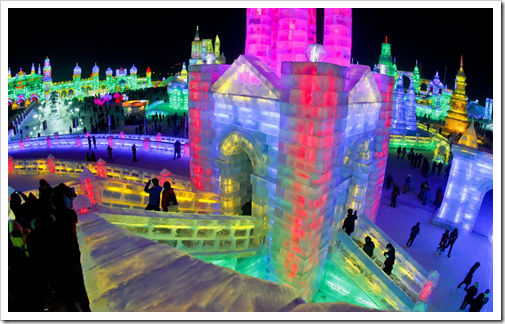
                    1. View these amazing Ice Festival images (you might find a good one to use with your Pivot animation!)
                      • image
                      • image

                      Wednesday Feb 1st:

                      - Part 1) Review

                      1. Please check your laptop for damages and report problems to me!
                      2. Daily Warmup Activity (2min timer if necessary – no talking while you complete your warmup please!)
                        • View these amazing Ice Festival images
                        • Choose the slide which you liked best and enter the slide number and a brief description of what you liked about it in the warmup form (the slide numbers are at the top)
                        • image
                        • Here’s a sentence starter (or you can choose your own): My favorite slide is ___ because ___
                      3. Use the Daily Warm-up Form to record your answer
                      4. Purple highlights are ‘plusses’… extra (hopefully fun) information to explore!
                      5. Read about the Ice Festival on Wikipedia at this link
                      6. If you thought a Big Mac had a lot of calories, try this link to see the total calories of a burger king double whopper with cheese

                      - Part 2) New

                        This is a great story and a great approach to life, especially when things are tough…

                        If you cannot fly then run,
                        If you cannot run then walk,
                        If you cannot walk then crawl,
                        But no matter what move forward.
                        ~ MLK
                        Photo source and credit: http://www.teamcody.com/

                        Cody (1 photo)

                      1. Here are some cool student Gifs from yesterday
                      2. Discuss questions about yesterday’s assignment
                      3. Review Google Maps and Streetview including how to use coordinates to find locations

                      - Part 3) Do - Today students will…

                      1. Go to Google Maps and use IW to capture ‘Streetviews’ of the following locations  
                        • BHS
                        • CCHS
                        • Our new football stadium:  30.0956,-97.4654
                        • The State Capitol Building in Austin
                        • The UT Tower: 30.2848,-97.7395
                        • +3 other locations that you’re curious about from this list of Austin Area Tourist Attractions (remember, you will need to find these in Google Maps Streetview… don’t capture images directly from the Tourist Site!)
                        • There should be a total of 8 images with labels in your collection
                      2. Here’s a partial example of what your collection should look like 
                        • image
                      3. Save your collection
                        • Copy and cut your collection from IW, paste it into Paint, save it as a JPG file named Gmaps1 and upload it into your Gdocs 103 Student Folder
                      4. Please complete your animated Gif assignment from yesterday if you haven’t already done so!

                      - Part 4) Through?

                      1. Continue to explore this list of Austin Area Tourist Attractions
                      2. Learn about Bats here (from the tourist attraction list)
                      3. Explore UT or TAMU in Streetview (or Penn State via Google Trike)

                        Thursday 2nd:

                        - Part 1) Review

                        1. Please check your laptop for damages and report problems to me!
                        2. Daily Warmup Activity (2min timer if necessary – no talking while you complete your warmup please!)
                          • View this Lego Creations Slideshow from the Robotics class
                          • Add a comment about what you saw for your warmup today
                          • Here’s a sentence starter (or you can choose your own): I watched the Legos Slideshow and…
                        3. Use the Daily Warm-up Form to record your answer
                        4. Checkout these Wolfram Alpha examples on Sports and Games
                        5. If you like animated Gifs, checkout this example of a different style of animated Gif or this one (both were created at http://www.gifpal.com/

                        - Part 2) New

                        1. View Natural Bridge Caverns images in streetview (you can use these as one of your Gmaps1 optional locations).  Here’s an example image:
                          • image
                        2. Review how to save your IW file
                          • Copy and cut your collection from IW, paste it into Paint, save it as a JPG file named Gmaps1 and upload it into your Gdocs 103 Student Folder
                        3. Review how to upload your work from your S-drive to your Gdocs 103 Student Folder 

                        - Part 3) Do - Today students will…

                        1. Complete your Google Maps Gmaps1 collection of these places (copy and paste the green coordinates)
                          • BHS: 30.1184,-97.3103
                          • CCHS:  30.1407,-97.4706
                          • Our new football stadium: 30.0956,-97.4654
                          • The State Capitol Building in Austin: 30.2727,-97.7411
                          • The UT Tower: 30.2848,-97.7395
                          • +3 other locations that you’re curious about from this list of Austin Area Tourist Attractions (remember, you will need to find these in Google Maps Streetview… don’t capture images directly from the Tourist Site!)
                          • There should be a total of 8 images with labels in your collection
                        2. Complete your animated Gif Pivot creation and upload it into your Gdocs 103 Student folder

                        - Part 4) Through?

                        1. Checkout these cool images of caverns like this one:
                          • image

                          Friday 3rd: Folder checks every Friday!

                          - Part 1) Review

                          1. Please check your laptop for damages and report problems to me!
                          2. Daily Warmup Activity (2min timer if necessary – no talking while you complete your warmup please!)
                            • Click on this link to find locations to visit in Streetview
                            • Copy the green block for any location you would like to visit
                            • Paste the numbers in Google Maps
                            • In the warm-up form, tell me briefly about a location you liked (or tell me about one you think I should add to the list)
                            • Here’s a sentence starter (or you can choose your own): I liked ____ (location) because ___
                          3. Use the Daily Warm-up Form to record your answer
                          4. Checkout this massive helicopter! Here’s another article about it.  Of course, then there’s this Winking smile

                          - Part 2) New

                          1. About hoaxes and snopes.com
                          2. Gdocs folder check
                          3. Review how (and why) to upload to Gdocs 103 student folder

                          - Part 3) Do - Today students will…

                          1. Complete the Week4 Reflection Form
                          2. Complete your Pivot2.gif animation and your Gmaps1.jpg Google Maps collection and upload them to your Gdocs 103 Student Folder
                          3. View the Friday Video Collection for this week

                          - Part 4) Through?

                          1. Explore the Grand Canyon Skywalk site and the Photo Gallery
                            • image