Week3 of Jan 23rd–Jan 27th

Highlights for the week:

  • View the BMS Public Calendar for this weeks events!
  • Tip: Use ctrl+f and enter the date as a number to jump quickly to the Blog entry for today!

Monday 23rd:

- Part 1) Review

  1. This is the last week before the end of the 4th Progress Reporting Period
  2. Please check your laptop for damages and report problems to me!
  3. Need new RUP forms (parent authorization form available in class to have a Google Apps/Gmail account)
    • 2nd – Tristan
  4. Daily Warmup Activity (2min timer if necessary – no talking while you complete your warmup please!)
    • Open the MS Office clipart site
    • Please send me the name of the following clipart image (it will start with MC900….).  Remember to use a complete sentence like: The name of this image… 
    • image
    • Here are some clues to help you find it
      • It’s an illustration, not a photo, animation or sound
      • Search for ‘footballs’
      • Click on the image to see the file name
  5. Use the Daily Warm-up Form to record your answer

- Part 2) New

  1. Copy the clipart collection from my J-drive folder to your S-drive folder
  2. Introduce Photovisi (view screencast)
    • Use the following template
    • PV template 
    • We’ll be making a practice collage like this partially completed example:
    • image
  3. Create a Photovisi collage using clipart which you have copied from my J-drive
    • You can find more clipart using the MS Office clipart site
    • Tip: you might be able to right-click and copy the URL of your clipart selection and add it directly to your collage (I’ll demonstrate this)
  4. To find background colors that go together well, use the Color Scheme Designer

- Part 3) Do - Today students will…

  1. Create a Photovisi collage with at least 5 clipart images 
    • Try uploading a background which you have created
    • Use clipart or photos from your desktop, S-drive, Office website or photo collections from home
    • Save your collage as Photovisi and upload it to your Gdocs 103 student folder
  2. Find 5 additional clipart images from the MS Office clipart site which you like and download them to your S-drive clipart collection to use in future projects
  3. If we are unable to use the Photovisi site for some reason, we will try creating a screencast at Screencast-o-matic.com of how to draw something using Flamepaint
  4. Robotics – View this ‘Make a name for yourself’ slideshow

- Part 4) Through?

  1. Experiment with Flockdraw (a collaborative whiteboard)

    Tuesday 24th:

    - Part 1) Review

    1. This is the last week before the end of the 4th Progress Reporting Period
    2. Please check your laptop for damages and report problems to me!
    3. Check the FAQs!
    4. Daily Warmup Activity (2min timer if necessary – no talking while you complete your warmup please!)
      • Open the MS Office clipart site
      • Browse the clipart site for any image or illustration (no sounds or animations please) that you find interesting and you think should be added to my J-drive collection for all students to use
      • Copy the link to your choice (or choices… you can add several if you like) and paste it in the form for today with a complete sentence which starts with some like:
        • I really like this clipart and…
      • image
    5. Use the Daily Warm-up Form to record your answer
    6. Checkout this Solar Flare news post and photos for today!

    - Part 2) New

    1. Create a new Photovisi collage with your choice of background and at least 6 images (view examples below and discuss questions or problems)
    2. Introduce Screencast-o-matic for recording a screencast (about 1/2 way through the period)

    - Part 3) Do - Today students will…

    1. Create a Photovisi collage with at least 5 clipart images and a different background than the one we used yesterday
      • Here are some examples:
      •  Photovisi (Mr. Mercer)
      • Photovisi Collage Demo (Mr. Mercer)
      • Try uploading a background which you have created
      • Photovisi2 (Mr. Mercer)
      • Use clipart or photos from your desktop, S-drive, Office website or photo collections from home
      • Save your collage as Photovisi and upload it to your Gdocs 103 student folder
    2. Record a 1min screencast of how you create something using flamepaint (or other escapemotions creation)   
    3. Save your screencast in your S-drive as Practice 
      • Make sure you choose the Flash (FLV) video type!
      • SNAGHTML8bd461

    - Part 4) Through?

    1. Browse the MS Office clipart site for more cool images to add to your collection
    2. Continue creating things with Flamepaint or Pivot! If you make something cool, show me in class!

      Wednesday 25th: School cancelled due to bad weather! (Here are some photos of my neighborhood after the storm)

      Thursday 26th:

      - Part 1) Review

      1. Checkout the storm photos which I posted yesterday
      2. Check your Gmail for a link to a Gdocs folder called Resources which we will explore today
      3. This is the last week before the end of the 4th Progress Reporting Period.  These files should be in your Gdocs 103 student folder:
        • image 
      4. Please check your laptop for damages and report problems to me!
      5. Daily Warmup Activity (2min timer if necessary – no talking while you complete your warmup please!)
        • Create a Gzaas message (http://gzaas.com/)
        • Copy the share link
        • Add a sentence and your Gzaas link to the warmup form.  Here’s a sentence starter (or you can choose your own): I used Gzaas to… 
      6. Use the Daily Warm-up Form to record your answer

      - Part 2) New

      1. Introduce the Resources Folder and the Help Folder in your Google Documents
      2. Review Gzaas (if necessary)
      3. Review Screencast-o-matic – (view How2 screencast from SOM) - run a short test & discuss saving as an mp4 file if you have problems saving your video as an flv file
      4. Introduce 3D Sketch and explore this list of demonstrations

      - Part 3) Do - Today students will…

      1. Record a screencast of you creating a Gzaas message (include finding the share link)
      2. Explore these 3D Sketch Demonstrations 
      3. Create your own 3D sketch at this link 
      4. Create a short screencast of how to create a 3D sketch and save it in your S-drive as 3D Sketch.flv
      5. Robotics

      - Part 4) Through?

      1. Work with Pivot, Flamepaint or 3D Sketch (or explore anything else on the right side panel of this Blog!)

        Friday 27th: Folder checks every Friday!

        - Part 1) Review

        1. Please check your laptop for damages and report problems to me!
        2. This is the last week before the end of the 4th Progress Reporting Period. These files should be in your Gdocs 103 student folder:
          • image 
        3. Daily Warmup Activity (2min timer if necessary – no talking while you complete your warmup please!)
          • Create a 3D Sketch of a tree of some sort (like this example)
          • You can find the center of rotation by looking at the black line in this image… it’s approximately below the letter ‘B’ in the Vibration Setting Block
          • SNAGHTML331979 
          • Copy the Save & Share link
          • Add a sentence and your 3D Sketch link to the warmup form. Here’s a sentence starter (or you can choose your own): I used 3D Sketch to…
        4. Use the Daily Warm-up Form to record your answer

        - Part 2) New

        1. Check for completed warmups for this week (you should have Jan-23, Jan-24, and Jan-26 in this list)
          • Please complete any missing warmups from earlier in the week!
        2. Folder review by name (use the 103 Student Demo folder for examples of what you should have in yours)
          • During the video clips today, I’ll be walking around asking each student to show me the contents of your 103 Student Folder and to help you with any problems

        - Part 3) Do - Today students will…

        1. Complete the Weekly Reflection Form
        2. Complete any missing work for Progress Reports
        3. View the Friday Video Collection for this week 

        - Part 4) Through?

        1. Checkout this Physics Simulation Game from Kyle!

        Week2 of Jan 16th–Jan 20th

        Highlights for the week:
        • View the BMS Public Calendar for this weeks events!
        • Tip: Use ctrl+f and enter the date as a number to jump quickly to Blog entry for today!
        Monday 16th: Holiday!
          Tuesday 17th:
          - Part 1) Review
          1. Please check your laptop for damages and report problems to me!
          2. Review Behavior for last week and discuss missing Behavior Contracts by class period (here’s a link to complete this form):
            • 1st – Alicia
            • 2nd – Pedro, Zach M
            • 3rd – All complete!
            • 5th – Jaeson
            • 7th - All complete!
          3. Need new RUP forms (parent authorization form available in class to have a Google Apps/Gmail  account)
            • 2nd – Tristan
            • 5th – Efrain, Nathan
          4. Daily Warmup Activity (2min timer if necessary – no talking while you complete your warmup please!)
            • Please look over our District Responsible Use Policy (also called the RUP), and tell me very briefly (and in a complete sentence/sentences) what you think the purpose of that document is. For example, what is it for, or what are you agreeing to when you sign it?
            • Use the Daily Warm-up Form to record your answer
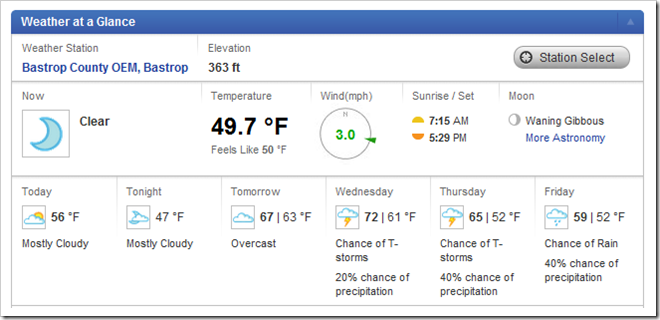
          5. Review Friday’s warmup (click on hotspot for full size view).  Click here for more weather records! 
            • image
          - Part 2) New
          1. Introduce Gradebook Logon (discuss ‘6’s)
          2. Introduce Paint program to convert image file types from IW (GWB) to JPG (View screencast)
          3. Review Thinkmap1 requirements (Due today!) 
          4. Introduce Flamepaint (if it doesn’t start automatically, click the play button to watch the slideshow)
          5.  
          - Part 3) Do - Today students will…
          1. Complete your Thinkmap1 assignment which is due today! 
            1. Capture your map (use ctrl+C or ctrl+X key combinations to copy or cut from IW)
            2. Paste it into paint (use ctrl+V to paste into Paint)
            3. Save it to your S-drive as a JPG file named Thinkmap1 
          2. Experiment with the Flamepaint application 
            • Adjust the control sliders one-at-a-time to see what effect they have on your brush
          3. Robotics students:
          - Part 4) Through?
          1. Explore these Legoland locations in streetview (drag pegman onto the map – red arrows below)
            Wednesday 18th:
            - Part 1) Review
            1. Please check your laptop for damages and report problems to me!
            2. Need new RUP forms (parent authorization form available in class to have a Google Apps/Gmail account)
              • 2nd – Tristan
              • 5th – Efrain, Nathan
            3. Daily Warmup Activity (2min timer if necessary – no talking while you complete your warmup please!)
              • Please find the definition of the word Invigorate (verb form of the word) and enter it in the daily warmup form below (you will have to look this word up – copy the word by double-clicking on it to highlight it and then using ‘ctrl+c’ to copy it and then click here for help finding the definition!)
              • Use the Daily Warm-up Form to record your answer
              - Part 2) New
              1. If you complete an assignment after the due date, please send me an email to let me know what you have completed (include the name of the assignment so that I will know where to look) and I will update your grade!
              2. Discuss your Google Documents folder (view screencast)
                • Upload your Thinkmap1.jpg file to your Gdocs 103 student folder (where you can access it from any internet connection or smartphone)
              3. Introduce StudyStacks using this stack on ‘ Ctrl+__ Keyboard Shortcuts ’ 
              4. Review Flamepaint controls which will allow you to write (Here are some examples with slight variations)
              - Part 3) Do - Today students will…
              1. Upload your completed Thinkmap1 JPG file to your Google Docs 103 Student  Folder. (Robotics students must upload their file before starting the ‘Make a name for yourself’ Legos project!) 
                •  Gdocs view
              2. Practice this StudyStack on ‘ Ctrl+__ Keyboard Shortcuts ’ 
                • Try all of the different review options to see what they do
                • image 
              3. Use Flamepaint to practice writing your name 
                • Experiment with one adjustment bar at a time to see what they do!
                • Here are some examples with slight variations
              - Part 4) Through?
              1. Complete your Thinkmap1 file if you haven’t done so already.  Be sure to upload it to your Gdocs 103 student folder so I can grade it!
              2. Continue exploring these Legoland locations in streetview
                Thursday 19th:
                - Part 1) Review
                1. Please check your laptop for damages and report problems to me!
                2. Need new RUP forms (parent authorization form available in class to have a Google Apps/Gmail account)
                  • 2nd – Tristan
                  • 5th – Efrain, Nathan
                3. Daily Warmup Activity (2min timer if necessary – no talking while you complete your warmup please!)
                  • Please translate the definition for invigorate from English to Spanish and copy/paste the Spanish translation into the warmup form for today.  Here are the links which you will need to do this
                  • Here’s what Google Translate for this warmup looks like
                  • image
                  • Use the Daily Warm-up Form to record your answer
                - Part 2) New
                1. Here’s a link to an article about yesterday’s SOPA blackout which also explains a little about both sides of the argument
                - Part 3) Do - Today students will…
                1. Use Flamepaint to practice writing your name or creating cool backgrounds 
                  • Experiment with one adjustment bar at a time to see what they do!
                  • Here are some examples with slight variations
                2. Practice the IW to Paint to JPG to Gdocs folder process 
                  • Capture some of your Flamepaint creations (at least 3) with IW
                  • Use the camera tool to copy/paste your creations into Paint
                  • Save your Paint file as a JPG file type named Flamepaint
                  • Upload your file into your Gdoc folder
                3. Complete your Thinkmap1 file if you haven’t done so already. Be sure to upload it to your Gdocs 103 student folder so I can grade it!
                  • Ask other students (next to you) for help with this or anything else if you need it!
                - Part 4) Through?
                1. Try some of these other Escapemotion experiments from the creator of Flamepaint
                  Friday 20th: Tomorrow - UIL competition at Elgin Middle School tomorrow.  Good Luck to all participants!
                  - Part 1) Review
                  1. Please check your laptop for damages and report problems to me!
                  2. Need new RUP forms (parent authorization form available in class to have a Google Apps/Gmail account)
                    • 2nd – Tristan
                    • 5th – Efrain, Nathan
                  3. Daily Warmup Activity (2min timer if necessary – no talking while you complete your warmup please!)
                  - Part 2) New
                  1. Please do not eat or drink in this classroom!
                  2. Review folders for Thinkmap1.jpg and Flamepaint.jpg uploads
                  3. Daily Warmup Grade (2 pts per day/total of 10pts per week/complete sentences to get full credit!).  Yellow highlights means I had to edit your data… please be careful when you complete the form! View completed warmups list (look for 3 dates since there was no school Monday– Jan 17,18,19; we will be adding the 4th date today)
                  - Part 3) Do - Today students will…
                  1. Complete the Weekly Reflections Form
                  2. Complete any missing daily warmups (use our Daily Warm-up Form)
                  3. Complete and upload your Thinkmap1.jpg and Flamepaint.jpg (which are due today!)
                  4. Robotics – Complete and photograph ‘Make a name for yourself’ creations
                  5. View Friday Video Clips selection
                  - Part 4) Through?
                  1. Try some of these other Escapemotion experiments from the creator of Flamepaint
                  2. Explore Google A-Z Webpage View and try some of the links

                  Week1 of Jan 9th–Jan 13th

                  Highlights for thie week:

                  • View the BMS Public Calendar for this weeks events!
                  • Tip: Use ctrl+f and enter the date as a number to jump quickly to Blog entry for today!

                  Monday 9th:

                  - Part 1) Review

                  1. Logon information handed out
                  2. View this message for you!
                  3. UIL meet Jan 24th.  If anyone is interested in competing in UIL Calculator, please let me know!
                  4. Daily Warmup Activity
                    • What do you think is happening in this picture, or what do you think is going to happen?
                    •  image

                  - Part 2) New

                  1. Introduce Classroom Rules through the Lab Behavior Contract Form, which is our first graded assignment
                  2. Discuss Weekly Lab Behavior Grade
                  3. Introduce Forms
                  4. Introduce Gzaas (view demo clip)
                  5. Introduce Pivot (which you can use when the network is down) 

                  - Part 3) Do - Today students will…

                  1. Complete the lab behavior contract form 
                  2. Submit a question or comment using the form to make sure you know how to use it! 
                  3. Experiment with Gzaas 
                    • Create a message for someone that’s important to you and save a link to it on your desktop
                  4. Explore the Pivot Animation program (on your desktop)

                  - Part 4) Through?

                  1. View my profile information, and +1s page on Google Plus
                  2. Explore this Blog! (try the links on the right side panel)

                    Tuesday 10th:

                    - Part 1) Review

                    1. Please check your laptop for damages and report problems to me!
                    2. Review the rules anytime on the right side panel of this blog in the Classroom Rules section (the form is there too!)  Remember, your most important grade every week comes from how well you follow these rules, so please continue to do the great job you have done so far!!!
                    3. Daily Warmup Activity (2min timer – no talking while you complete your warmup please!)
                      • Yesterday’s completed warmups list
                      •  image
                      • Use this Daily Warm-up Form to record your answer to the question below (remember to use a complete sentence or sentences please!)
                      • According to the image below, when will our next full moon occur and what do you think the blue blotches and the pink line are on the radar image? Remember to use complete sentences, so you should start your answer with something like ‘Our next full moon will…’
                      • image
                      • There’s a link to the live weather forecast at the top right of this Blog! Here’s another link for today’s forecast
                    4. Here’s an article and image related to yesterday’s warmup
                      • image

                    - Part 2) New

                    1. If you are permitted to, at home you can download the free version of Pivot which we use here at this link
                    2. Questions or comments from yesterday (FAQs). Thanks to Adriana (2nd), Amber (3rd) and Corey (7th) for your questions and comments!
                    3. See the results of yesterday’s warmups
                    4. Introduce InterWrite (IW) to capture and arrange images and text from 308Today (View Screencast)
                    5. Use IW to create a thinking map ‘About Me’ 

                    - Part 3) Do - Today students will…

                    1. Open IW and change your preferences to the advanced toolbar so you will see the capture tool (which looks like a camera)
                      • Experiment with toolbar options
                        • Switch to the advanced toolbar
                        • Use the pencil tool
                        • Use the highlighter
                        • Draw lines of different types and colors
                        • Draw arrows of different lines and colors
                        • Create a text box
                        • Use the capture tool to collect images
                        • Save your IW file to your S-drive as Practice
                    2. Time permitting we will use IW to capture some frames of a pivot animation and add text to describe what’s happening in your animation like a storyboard (view the float-away example)
                      • Save your IW file to your S-drive as ‘Pivot’

                    - Part 4) Through?

                    1. Continue working on your pivot animation

                      Wednesday 11th:

                      - Part 1) Review

                      1. Please check your laptop for damages and report problems to me!
                      2. Discuss How to end class.  Remember, your most important grade every week comes from how well you follow these rules, so please continue to do the great job you have done so far!!!
                      3. Daily Warmup Activity (2min timer if necessary – no talking while you complete your warmup please!)
                        • Use this Daily Warm-up Form to record your answer to the question below (remember to use a complete sentence or sentences please!)
                        • What do you think this picture is trying to show? (for example, what are the objects in the sky? Why are there so many of them?  Why are they changing?  What time of day is it? )
                        • image 

                      - Part 2) New

                      1. Yesterday’s completed warmups list (check for your name and yellow highlights)
                        •  image

                          "February 7 is when our next full moon will occur.
                          I think the blue and pink spot have to do with temperature."

                      2. Take the True Colors Inventory (view demo clip)
                      3. Introduce Thinking maps (Circle Map) which will tell me a little about you (view demo clip)
                        • Center oval – Name (First and Last) and Class Period
                        • 2nd Oval – Text and/or pictures which represent things which are important to you (this could be things like family, friends, fun, sports, hobbies, places, music, etc.)
                        • Rectangle (frame) – Text and/or pictures which explain why those things are important to you and your true color (reasons why could include past experiences, role models, family,  friends, etc.)
                        • Create a thinking map like this example (here’s a link to a larger view) and save it as Thinkmap1 in your S-drive
                        • image

                      - Part 3) Do - Today students will…

                      1. Complete the True Colors Inventory 
                      2. Use IW to begin creating a Thinking Map about you  and save your work as Thinkmap1 in your S-drive

                      - Part 4) Through?

                      1. Continue working on a Pivot animation

                        Thursday 12th:

                        - Part 1) Review

                        1. Please check your laptop for damages and report problems to me!
                        2. It will be much colder tonight!
                          •   image
                        3. Daily Warmup Activity (2min timer if necessary – no talking while you complete your warmup please!)
                          • Use this Daily Warm-up Form to record your answer to the question below (remember to use a complete sentence or sentences please!)
                          • When and where is the UIL team field trip and how much will it cost?  The purpose of this warmup question is to get you used to using our public calendar.  To answer it, go to the Public Calendar at the top of the page, use the arrows to change the month to February, look for the event and click on it.  Try clicking on the map link to go to the event on Google Maps.
                        4. Once you’ve finished your warmup, checkout these links about yesterday’s warmup photo which was time-lapse photography of a lunar eclipse 

                        - Part 2) New

                        1. View and discuss yesterday’s completed warmups list (discuss green and yellow highlights)
                        2. View and discuss our updated FAQs
                        3. View our True Colors by class period
                        4. Introduce logon to Gmail and how to access your Google Documents folder, where you can save your work and access it from any internet connection or smartphone (view screencast)
                        5. Discuss the Grading Rubric for your Thinkmap1 assignment which is due tomorrow! (tip: put your cursor on the image below and click on the hotspot to view a larger version of the image below!)
                          • Thinkmap1 rubric
                        6. When it’s finished, save your IW Thinkmap1 as a Paint (jpg) file (view screencast) in your S-drive or on your desktop.  Tomorrow we will learn how to upload it to your Google Documents folder to be graded.

                        - Part 3) Do - Today students will…

                        1. Continue creating your Thinkmap1 assignment (which is due Tuesday!)

                        - Part 4) Through?

                        1. Continue working on a Pivot animation

                          Friday 13th: Monday is a holiday, so I’ll see you next Tuesday!

                          - Part 1) Review

                          1. Please check your laptop for damages and report problems to me!
                          2. Here’s a Gzaas message for you!
                          3. Daily Warmup Activity (2min timer if necessary – no talking while you complete your warmup please!)
                            • What, when and where was the lowest temperature ever recorded on Earth (in °F)? You’ll have to look this one up on the net.  Remember to use complete sentences in your answer to receive full credit! 
                            • Use the Daily Warm-up Form to record your answer
                          4. Review yesterday’s warmup (click on hotspot for full size view)
                            • warmup 1-12

                          - Part 2) New

                          1. Daily Warmup Grade (2 pts per day/total of 10pts per week/complete sentences to get full credit!).  View completed warmups list (look for 4 dates – Jan 9, 10, 11 & 12; we will be adding the 5th date today)
                          2. Introduce the Weekly Reflections Form (you must write 3 complete sentences in each large block to receive full credit!)

                          - Part 3) Do - Today students will…

                          1. Complete our first Weekly Reflections Form
                          2. Complete any missing daily warmups (use our Daily Warm-up Form)
                          3. Continue creating your Thinkmap1 assignment (which is due Tuesday!)
                          4. View Friday Video Clips selection

                          - Part 4) Through?

                          1. Continue working on a Pivot animation (or other appropriate activity of your choosing)
                          2. Have a great weekend :)

                          Week of Dec 19th–Dec 21st

                          Highlights for the week:

                          Monday 19th:

                          - Part 1) Review

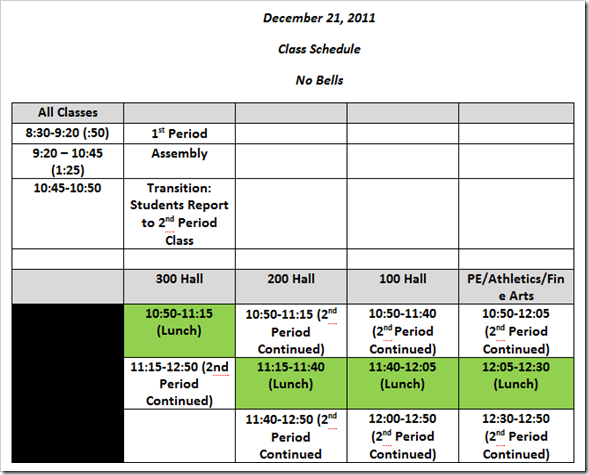
                          1. Here is the bell schedule for Today! 
                            • image
                          2. Please check your reflection form grades, and if you are missing any, here are the links to complete them:
                            • 3.7
                            • 3.9
                            • 3.10 (Thanks for all of the great comments and suggestions which most of you wrote in this form!  I enjoyed reading them very much :)
                          3. Check to make sure you have completed your Glog projects by logging on to your Glogster account… they take a while to grade, so I’ll be entering those over the holidays.  Here are the links to logon and to the project descriptions & examples (click the images to view the Glogs):

                          - Part 2) New

                          1. Good luck with your semester exams this week!
                          2. Explore this list of Holiday related sites and activities: Ferlazzo Best Places To Learn About Christmas, Hanukkah, & Kwanzaa.  If you find one you think others would like, please gmail me a link!

                          - Part 3) Do - Today students will…

                          1. Complete missing weekly reflections and add finishing touches to your Glog Projects (links in the Review section above)

                          - Part 4) Through?

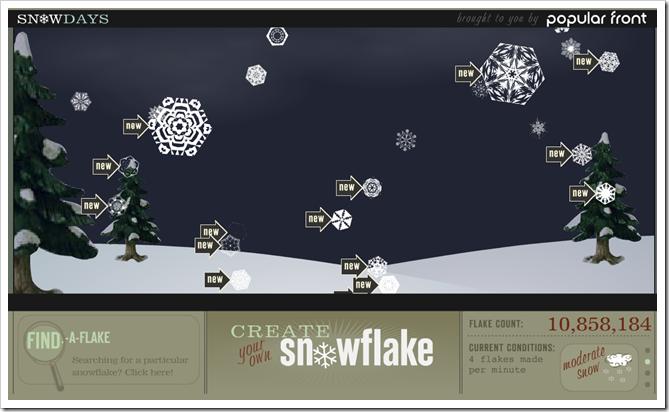
                          1. Try this Create your own Snowflake activity

                          image

                            Tuesday 20th:

                            - Part 1) Review

                            1. Check your Gmail!
                            2. Here is the bell schedule for Today!
                              • image
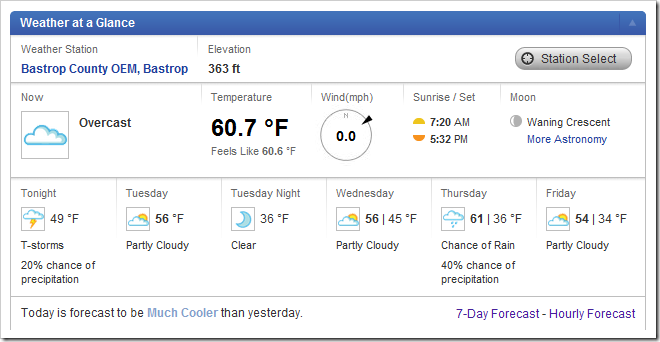
                            3. There’s a weather front moving through this morning and temperatures should begin to drop
                              • image

                            - Part 2) New

                            1. Explore this list of Holiday related sites and activities: Ferlazzo Best Places To Learn About Christmas, Hanukkah, & Kwanzaa.  If you find one you think others would like, please gmail me a link!
                            2. Try this Shoebox holidays shoebox scene creator:
                              • image

                            - Part 3) Do - Today students will…

                            1. Complete missing weekly reflections and add finishing touches to your Glog Projects; here are the forms links:
                              • 3.7
                              • 3.9
                              • 3.10 (Thanks for all of the great comments and suggestions which most of you wrote in this form! I enjoyed reading them very much :)

                            - Part 4) Through?

                            tumblr_ldwtlpYa4H1qzt4vjo1_r2_500

                              Wednesday 21st: Last School Day of 2011!  You will attend your 1st and 2nd period classes ONLY today!

                              - Part 1) Review

                              1. Here is the bell schedule for Today!
                                • image

                              - Part 2) New

                              1. View the Bear Essentials Videocast
                              2. View these National Geographic Photo Contest 2011 winning images

                              - Part 3) Do - Today students will…

                              1. Attend 1st period, then go to an assembly, and then attend your 2nd period classes (during which lunch will be served)

                              - Part 4) Through?

                              image

                              Week of Dec 12th–Dec 16th

                              Highlights for the week:

                              Monday 12th:

                              - Part 1) Review

                              1. Logon to your Gmail so the links below will work
                              2. Here’s the forecast for the week:
                                • image

                              - Part 2) New

                              1. View this Glog of Penn State
                                • image
                              2. Create an electronic poster or tour using any of these 3 resources
                                • Glogster (5 zones – 1 per category)
                                • Prezi (5 frames – 1 per category)
                                • Google Presentation (2 slides per category– 10 slides total)

                              - Part 3) Do - Today students will…

                              1. Choose a college or university for your project.  Here are a couple of links to help you explore and choose your campus for this project: 
                              2. Create a new Google Document to collect information in each of the following 5 categories (2pts per category). Make a copy of this template (click here) in the 103 Student Demo folder to collect your research information
                                  • image
                                  • image
                                1. Name, Logo and school colors
                                2. Historical information (wikipedia, campus website, etc.)
                                3. Location (maps & streetviews)
                                4. Multimedia (around the campus, famous buildings, landmarks)
                                  • images, audio clips, animations
                                5. Favorites (what features made you choose your campus?)
                              3. Robotics Final Project Choice (click here to go to form)

                              - Part 4) Through?

                              1. View this Holiday Lights Show from around the World
                                • image

                                Tuesday 13th:

                                - Part 1) Review

                                1. Discuss Missing Keyboard Keys
                                2. Check your Gmail!
                                3. Today is makeup picture day

                                - Part 2) New

                                1. Need to shorten a URL so it fits in your project better?  Try this one:  http://goo.gl/
                                2. View this Prezi version of the project
                                  • PSU Prezi Paw

                                - Part 3) Do - Today students will…

                                1. Continue creating and enhancing your University Project! 
                                2. Extra Credit Opportunity! 
                                  • Replace your lowest grades by making your university project in a different version!
                                  • Example: If you used Glogster for your project, you can replace one lowest grade by making a Prezi and another by making a Google Presentation
                                  • Making additional versions should be much easier since you have already collected the materials for your original version!
                                3. Robotics Ideas 

                                - Part 4) Through?

                                1. Check out this Top 10 lists of 2011 Special from Time
                                  • image

                                  Wednesday 14th:

                                  - Part 1) Review

                                  1. Please check your laptop for damages and report them immediately!
                                  2. Please check your Gmail for examples of all 3 Project Versions (and so the links below will work correctly!)

                                  - Part 2) New

                                  1. View and discuss the bell schedule for Friday
                                    • You will only be going to your 2nd and 6th period classes on Friday (due to testing)
                                    • Tomorrow (Thursday) my classes will be on a ‘Friday’ schedule since I won’t see most of you
                                  2. Today is the last Project workday (although you will be able to work on it tomorrow during the videos)
                                    • image
                                  3. View this example presentation version of this project
                                    • image

                                  - Part 3) Do - Today students will…

                                  1. Continue creating and enhancing your University Project!
                                  2. Extra Credit Opportunity!
                                    • Replace your lowest grades by making your university project in a different version!
                                    • Example: If you used Glogster for your project, you can replace one lowest grade by making a Prezi and another by making a Google Presentation
                                    • Making additional versions should be much easier since you have already collected the materials for your original version!
                                  3. Robotics Ideas

                                  - Part 4) Through?

                                  1. Checkout these Christmas images from the Sacramento Bee
                                    • Apparently some of Santa’s helpers work under the North Pole!
                                    • image 

                                    Thursday 15th:

                                    - Part 1) Review

                                    1. Here’s the bell schedule for Tomorrow
                                    2. Since most of you won’t have this class tomorrow, we’ll be doing our final reflections form today; there’s a link in Part 3 below (click on the piano keys to go to the form)
                                    3. Check your Gmail
                                    4. Here’s the forecast for today… temperatures will drop as the cold front moves through late this afternoon
                                      • image
                                    5. Check your University project to make sure it contains these things: 
                                      1. Name, Logo and school colors
                                      2. Historical information (wikipedia, campus website, etc.)
                                      3. Location (maps & streetviews)
                                      4. Multimedia (around the campus, famous buildings, landmarks)
                                        • images, audio clips, animations
                                      5. Favorites (what features made you choose your campus?)

                                    - Part 2) New

                                    1. If you made a Prezi, make sure you send me the link so I can see it to grade it.  Click on the share button to find and copy the link, and then paste it in a gmail to me.
                                      • image
                                      • image
                                    2. If you made a Google Presentation, make sure you drag it into your Gdoc 103 Student folder so I can see it!

                                    - Part 3) Do - Today students will…

                                    1. Complete 3.10 Final Weekly Reflections Form!
                                      • image
                                    2. Continue creating and enhancing your University Project!
                                    3. Extra Credit Opportunity!
                                      • Replace your lowest grades by making your university project in a different version!
                                      • Example: If you used Glogster for your project, you can replace one lowest grade by making a Prezi and another by making a Google Presentation
                                      • Making additional versions should be much easier since you have already collected the materials for your original version!

                                    - Part 4) Through?

                                    1. Elf Caroling Creations: too much fun!  http://www.zefrank.com/xmas/

                                      Friday 16th: Today you will only be attending your 2nd and 5th period classes!

                                      - Part 1) Review

                                      1. Here’s the bell schedule for Today and here are the bell schedules for Monday and Tuesday of next week 
                                      2. Your testing room assignments will be posted in the cafeteria (and possibly elsewhere)!

                                      - Part 2) New

                                      1. Good luck with your Math Testing today!

                                      - Part 3) Do - Today students will…

                                      1. Take the Math/Algebra practice test during 2nd period
                                      2. Review for Monday’s Science test during 5th period 
                                      3. Attend the school dance (or remain in 5th period)

                                      - Part 4) Through?

                                      1. Check out the NORAD tracks Santa Website